Sage Construction Management configuration
You can configure Sage Construction Management to define how data is synced between the two systems.
-
Go to Settings (
 ) > Company Settings > Profile.
 -
In the Ship To Address and Bill To Address sections, specify the Country as Canada.
This is a required field. -
In the External Applications Being Used section, select Sage Simply Accounting from the Accounting System dropdown.
Default currency (required)
You must configure the Default Currency to be used in Sage Construction Management.
-
Go to Settings (
) > Company settings > Global settings. -
In the General Settings section, select Canadian Dollar (CAD) from the Default Currency dropdown.
-
Select Save.
Lock transactions in Sage Construction Management after export
To avoid discrepancies between the two systems, you can configure Sage Construction Management to lock transactions automatically after they’ve been exported to QuickBooks Online.
-
Go to Settings (
) > Company settings > Global settings. -
In the General Settings section, select Lock Exported Transactions: Auto-lock exported transactions from the Transaction Locking dropdown.
-
Select Save.
You can optionally add bill types in Sage Construction Management. Go to Settings () > Feature Settings > Procurement and select Add in the Bill Types section.
After bill types have been configured, set the corresponding export rules in the Sync Preferences section of AccountingLink to control how each bill type is handled during export to Sage 50 Canada.
We recommend adding manually or importing sales tax codes in Sage Construction Management from Sage 50 Canada if needed. Rates for each code must be the same otherwise there will be a discrepancy in the total when exporting transactions from Sage Construction Management to Sage 50 Canada.
You can either import sales tax codes in Sage Construction Management from Sage 50 Canada or add them manually. Rates for each cost code must be consistent across both systems; otherwise, discrepancies might occur in the total amount when transactions are exported from Sage Construction Management to Sage 50 Canada.
To add tax codes in Sage Construction Management, go to Settings () > Feature Settings > Taxation.
To link tax codes in AccountingLink, go to the Sync Preferences and configure the appropriate mappings.
Refer to the Canada tax codes and rates section for the applicable GST/PST Tax Groups.
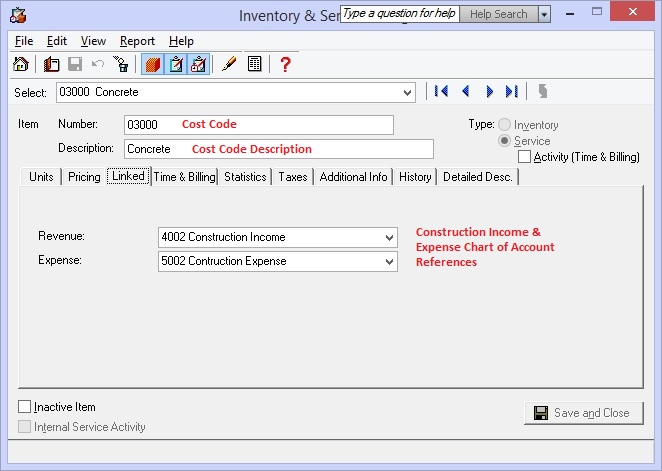
Project cost codes or internal division codes in Sage Construction Management must match the service items in Sage 50 Canada.
For example, the cost codes displayed below in Sage 50 Canada should correspond to the cost codes set up in AccountingLink for Sage Construction Management.