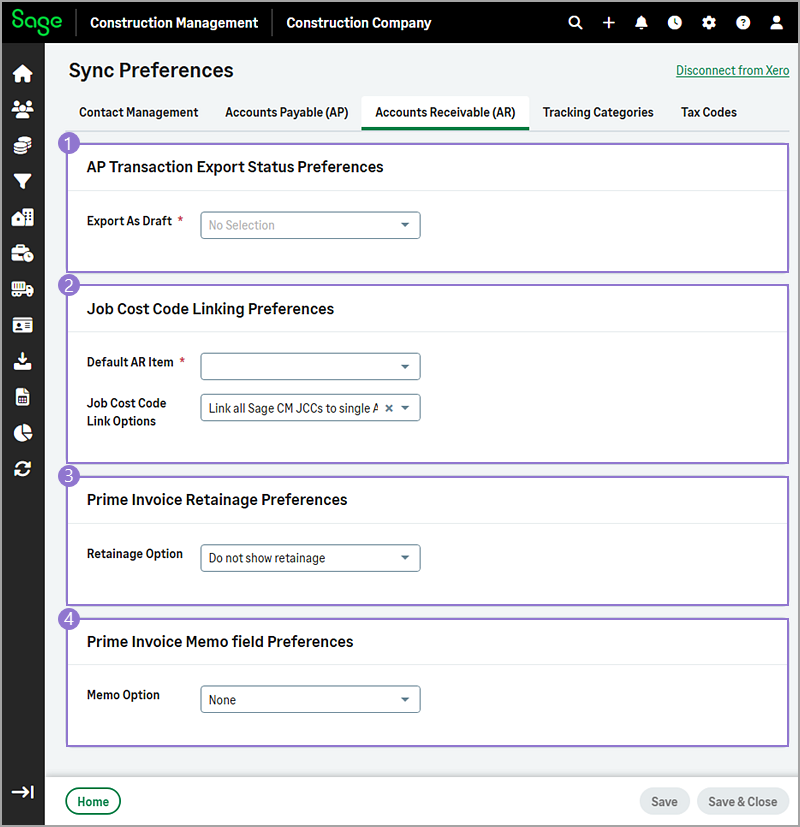
Accounts Receivable sync preferences
-
To export Sage Construction Management Accounts Receivable transactions to Xero as drafts, select Yes from the Export As Draft dropdown.
-
Default AR Item
Prime contract invoices in Sage Construction Management must reference a job cost code whereas invoice entries in Xero require an item or a Chart of Account. Thus, to export invoices from Sage Construction Management to Xero rules need to be established on how the job cost code must be replaced with the appropriate item. The Default AR Item serves as a fallback during auto-linking when matching by cost code or description, or when replacing cost codes with a single item.
It's recommended to set the Default AR Item to the unclassified item, for example, 00CCUnc.
Job Cost Code Link Options
Options Description Link all Sage CM JCCs to a single AR Item All Sage Construction Management prime contract invoice items will reference the default AR item. Link AR Items to a specific Project Classification Project classifications can be set up in Sage Construction Management to categorize leads and projects. For example, a classification system titled Project Type could be created with options such as Custom Home, Apartment, School, Lab, or Retail Facility. Each lead or project will then reference one of these options. If items in Xero are set up in a similar manner, then this option must be used to set the appropriate item. Auto Link AR Item based on the Project Number (exact match only) If items in Xero reflect projects, then Sage Construction Management job cost codes can be linked automatically using the project number as the criteria. For example, if there are 20 projects in Sage Construction Management then there will be the same number of items. The item's name will be the project number not title. In cases where there's no match upon export, the default AR item referenced above will be used. Auto Link AR Item based on the Job Cost Code (exact match only) If items in Xero reflect cost codes, then Sage Construction Management job cost codes can be linked automatically using the code/name as the criteria. Specifically: - The job cost code is matched first.
- If the job cost code is not found, AccountingLink looks at the internal division code to find a match.
- If the internal division code is not found, the AccountingLink will use the default AR item.
This is the recommended setting.
Auto Link AR Item based on the Job Cost Code Description (exact match only) Similar to the option above but the cost code description will be used as the criteria. Specifically: - The job cost code description is matched first.
- If the job cost code description is not found, AccountingLink looks at the internal division code description to find a match.
- If the internal division code description is not found, the AccountingLink will use the default AR item.
-
The following export options are available for prime contract invoice retainage or holdbacks:
- Do not show retainage
- Show retainage in Xero
If the prime contract invoice retainage will be tracked in Xero, make sure to reference the default and billed retainage items. Typically, the item referenced in both fields is the same.
-
The following options are available for formatting the Memo field when exporting Sage Construction Management prime contract invoices to Xero:
- Project # - Prime Contract #
- Project # - Prime Contract # - Prime Contract Subject
- Project # - Project Title - Prime Contract # - Prime Contract Subject
- Project Title - Prime Contract Subject