Measure
The Measure tab lets you make measurements of drawing components.
| Tool | Name | Description |

|
Scale |
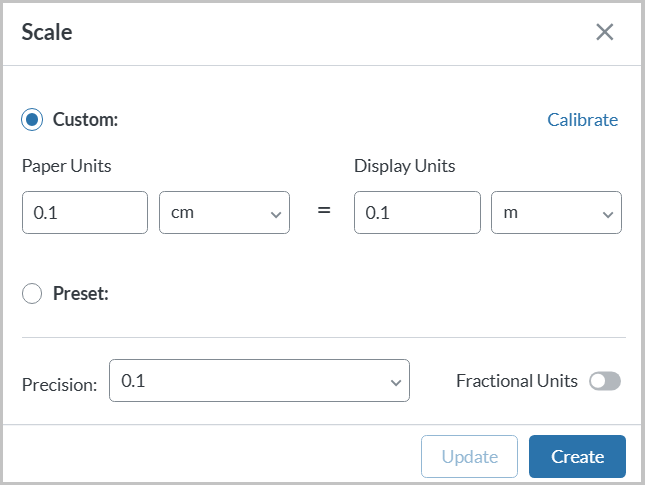
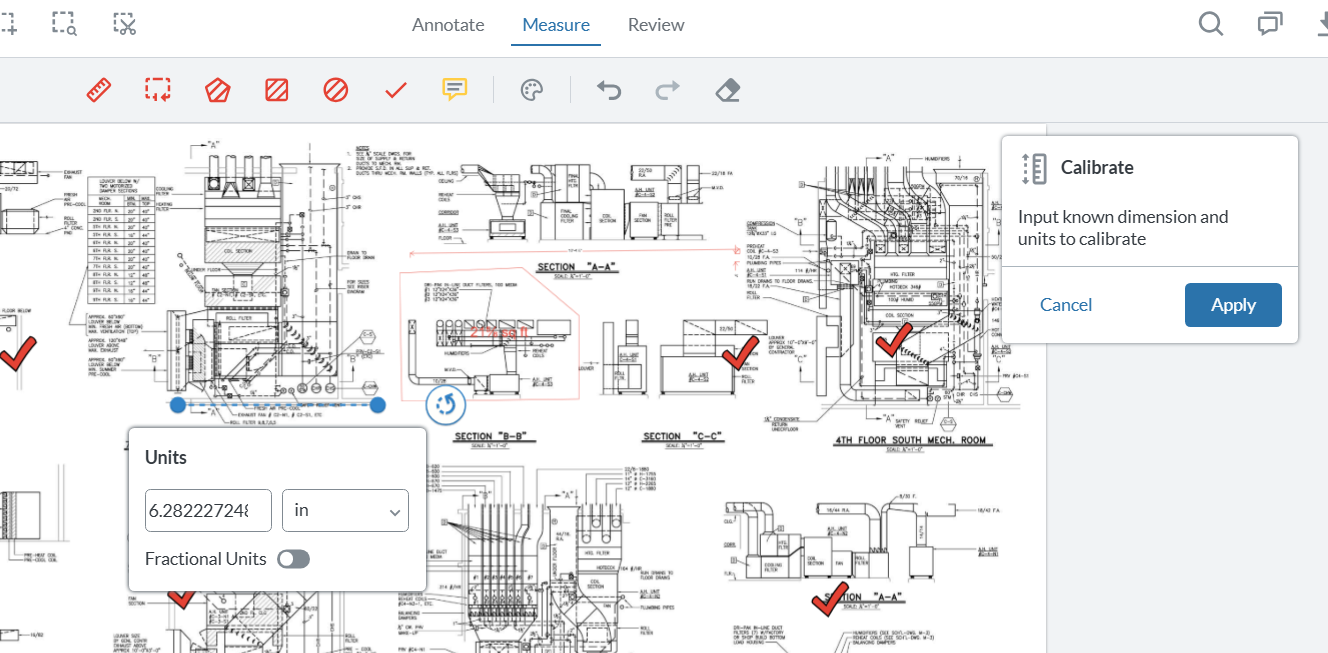
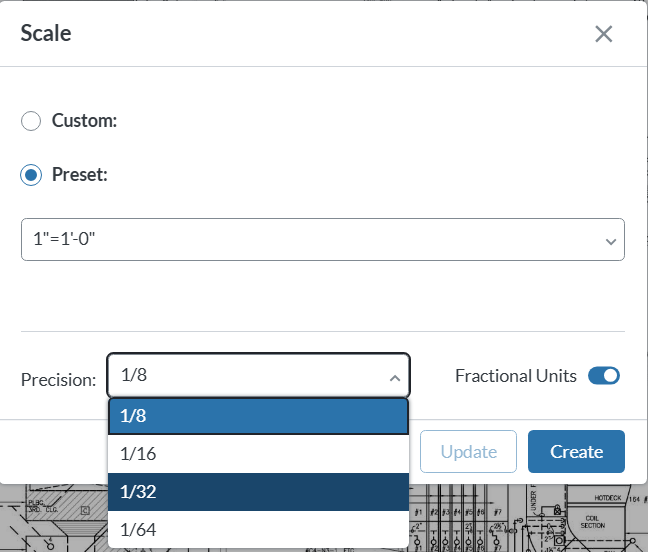
Before you can measure you need to set the scale on the drawing. Set the scale
|

|
Ruler |
Once the scale is set, use the Ruler tool to measure a length in the drawing. Click and drag to set the distance. |

|
Perimeter |
The perimeter tool lets you trace a shape to determine its perimeter. This doesn't limit you to rectangles. You can trace any shape needed. |

|
Area |
The area tool measures the area of a component and is a free form tool not limited to rectangles. This tool has a target at the starting point so you can close the shape by selecting the target when you're finished. |

|
Rectangle | The rectangle tool can be used for regular shapes. |

|
Ellipse | The ellipse tool can be used for regular shapes. |

|
Count | The count tool lets you select individual items to count them. You can see the total number of objects in the callout in the bottom right. |

|
Note |
Use the Note tool to attach comments to the document without marking directly on the content. Note icons appear and display their text when hovered over or selected. Add a Note
Notes can be edited or deleted using the three‑dot menu. |