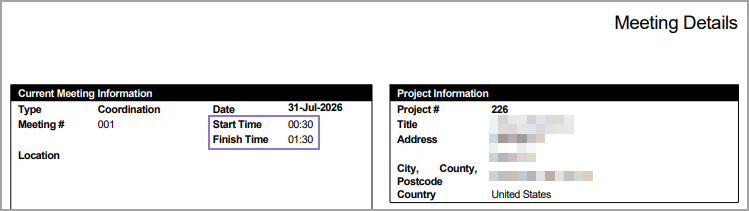
24-hour time bookmarks for meeting details report
Related information
 Related topics
The meeting details Microsoft Word template now supports additional bookmarks that display meeting times in a 24-hour format, providing greater flexibility when customizing reports.
Details
You can now use the following bookmarks in the meeting details Microsoft Word template to display meeting times in a 24-hour format (HH:mm):
-
MeetingStartTime24HrFormat
-
MeetingFinishTime24HrFormat
-
MeetingNextMtgTime24HrFormat
The existing bookmarks display meeting times in a 12-hour format (h:mm tt):
-
MeetingStartTime
-
MeetingFinishTime
-
MeetingNextMtgTime
The default template displays meeting times in a 24-hour format.
How it works
- To update the meeting details report Microsoft Word template with the new bookmarks, do the following:
- Download and open the MeetingDetails.dot file.
Replace the MeetingStartTime, MeetingFinishTime, and MeetingNextMtgTime bookmarks with the new MeetingStartTime24HrFormat, MeetingFinishTime24HrFormat, and MeetingNextMtgTime24HrFormat bookmarks to display times in 24-hour format.
Save the report template in *.doc or *.dot format.
- To upload the updated meeting details report Microsoft Word template, do the following:
- Go to Settings (
 ) > Templates & Reports > Detail Report Templates.
 - Select Upload.
Select Meeting Minutes from the Feature dropdown, enter a Name for the report template, select a file from your local drive, and then select Upload.
- Go to Settings (
- To download a meeting details report, do the following:
- Open a project and select Meetings in the Documentation section.
- Select the meeting number from the list.
- Select Reports > Meeting Details.
- In the dialog, select the Template that you previously uploaded and select Ok.
Meeting times on the report are displayed in 24-hour format.