Enhanced lead and project navigation menu
Related information
 Related topics
The lead and project header has been updated to provide quicker access to frequently used actions and make navigation more efficient.
Details
Previously, the Lead and Project dropdowns were used to switch leads or projects and the Jump to dropdown was used to access features. The redesigned navigation provides quick access to features, favorites, and project or lead switching directly from the page header.
-
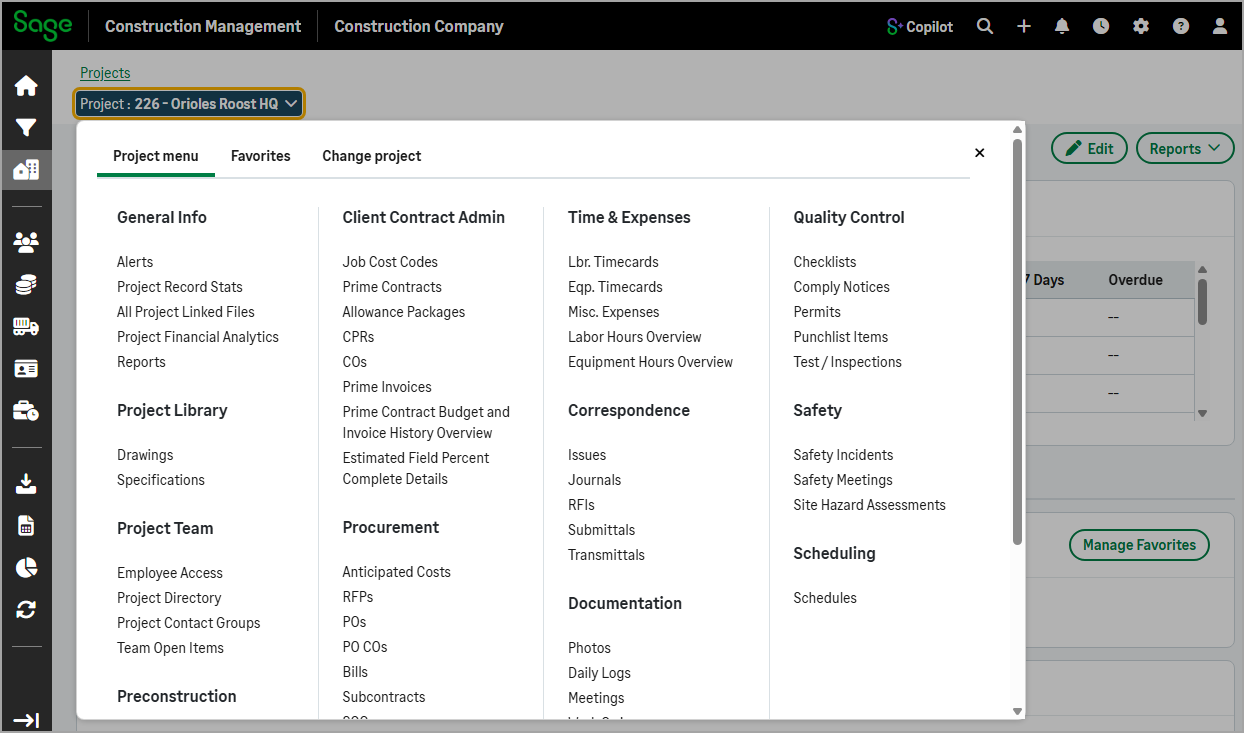
Project or lead name dropdown: Access all available features for the current project or lead from a single, centralized location, and add them to the favorites.
-
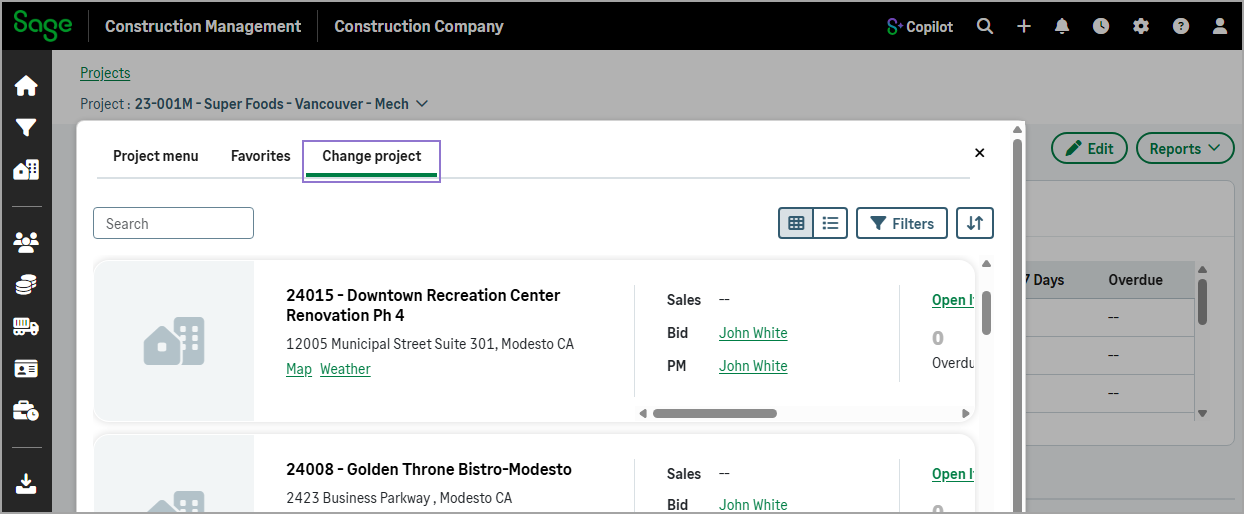
Project or lead number dropdown: Quickly switch to another project or lead without returning to the Projects or Leads page.
-
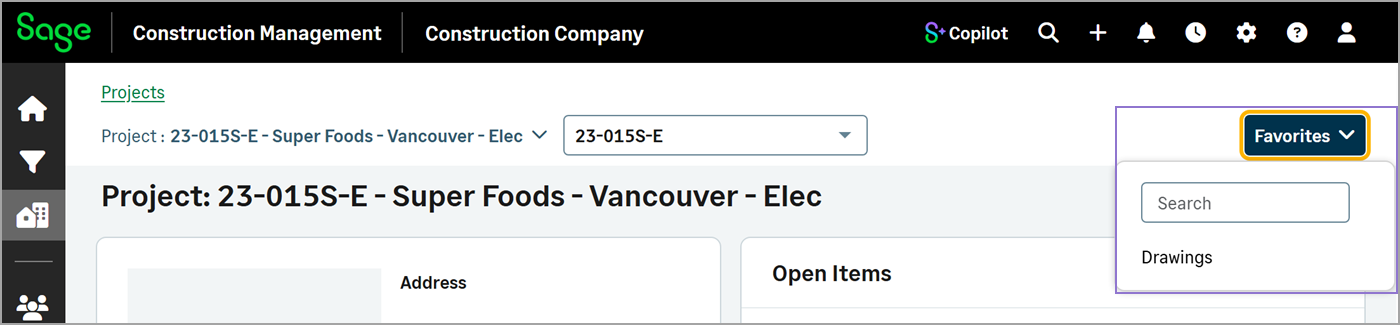
Favorites dropdown: Quickly access features you've marked as favorites.
How it works
- Go to Leads or Projects and select a lead or project from the list.
-
Select the lead or project name dropdown and do any of the following:
-
To open a feature, select it from the list.
-
To add a feature to the favorites, select the favorite icon (
 ) next to it.
-
-
To switch lead or project, select the lead or project number dropdown and select the lead or project that you want to open.
-
To open a feature from your favorites list, select it from the Favorites dropdown.