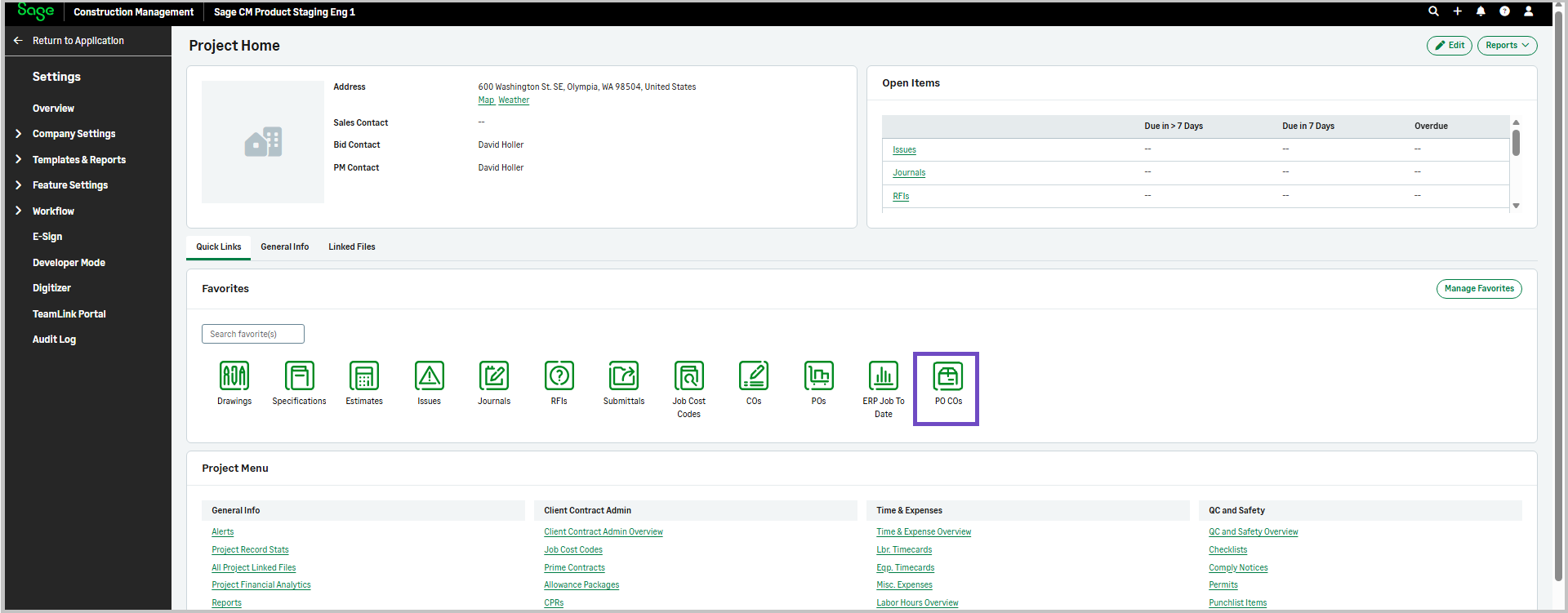
New favorites icon for PO COs
A change order for a purchase order (PO CO) icon has been added in the favorites section of the projects' homepage.
Details
An icon now displays in the favorites section when selecting a PO CO.
How it works
-
Go to Projects and select the required project.
-
In the Favorites section, select Manage Favorites.
-
Select PO COs and select Save.
The PO COs icon displays in the favorites section and enables you to quickly access the PO COs page where you can view and add PO COs.