Clock in and clock out enhancements
Related information
 Related topics
Administrators can now clock out employees, and comments display by default in the employees section when clock in and out data is converted to labor timecards.
Details
-
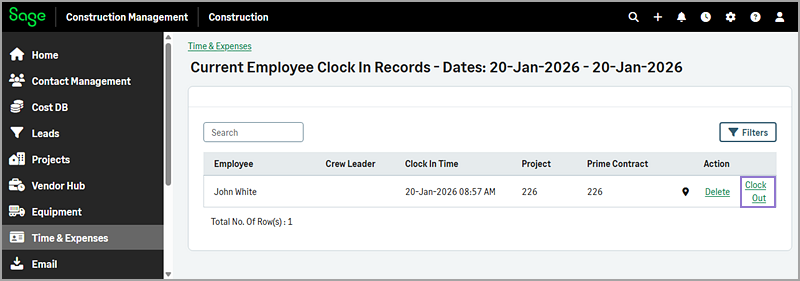
Administrators can clock out employees using the Clock Out option in the Current Employee Clock In Records page.
-
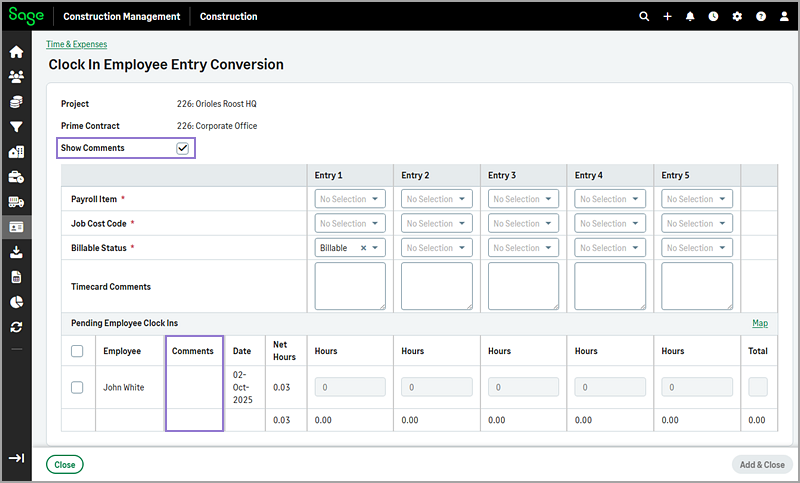
When you convert employee pending clock in and out data into labor timecards, the Show Comments checkbox is selected by default, and the Comments column displays in the employees section.
How it works
Clock out an employee
- Log in to Sage Construction Management as an Administrator.
-
Go to Time & Expenses.
-
In the Timecard and Expense Stats section, select the count number in the Employees Clocked In row.
-
Select Clock Out next to the appropriate user.
View comments when converting pending clock in and out data into labor timecards
-
Go to Time & Expenses.
-
In the Timecard and Expense Stats section, select the three-dot menu icon (
 ) in the Employees Clocked In / Out row.
 - Select Convert Pending Clock-In Data.
- Specify the project, prime contract, and convert options and select Next.
On the Clock In Employee Entry Conversion page, the Show Comments checkbox is select and any comments display under the Comments column for each employee.