Purchase order enhancements
Related information
 Related topics
Details
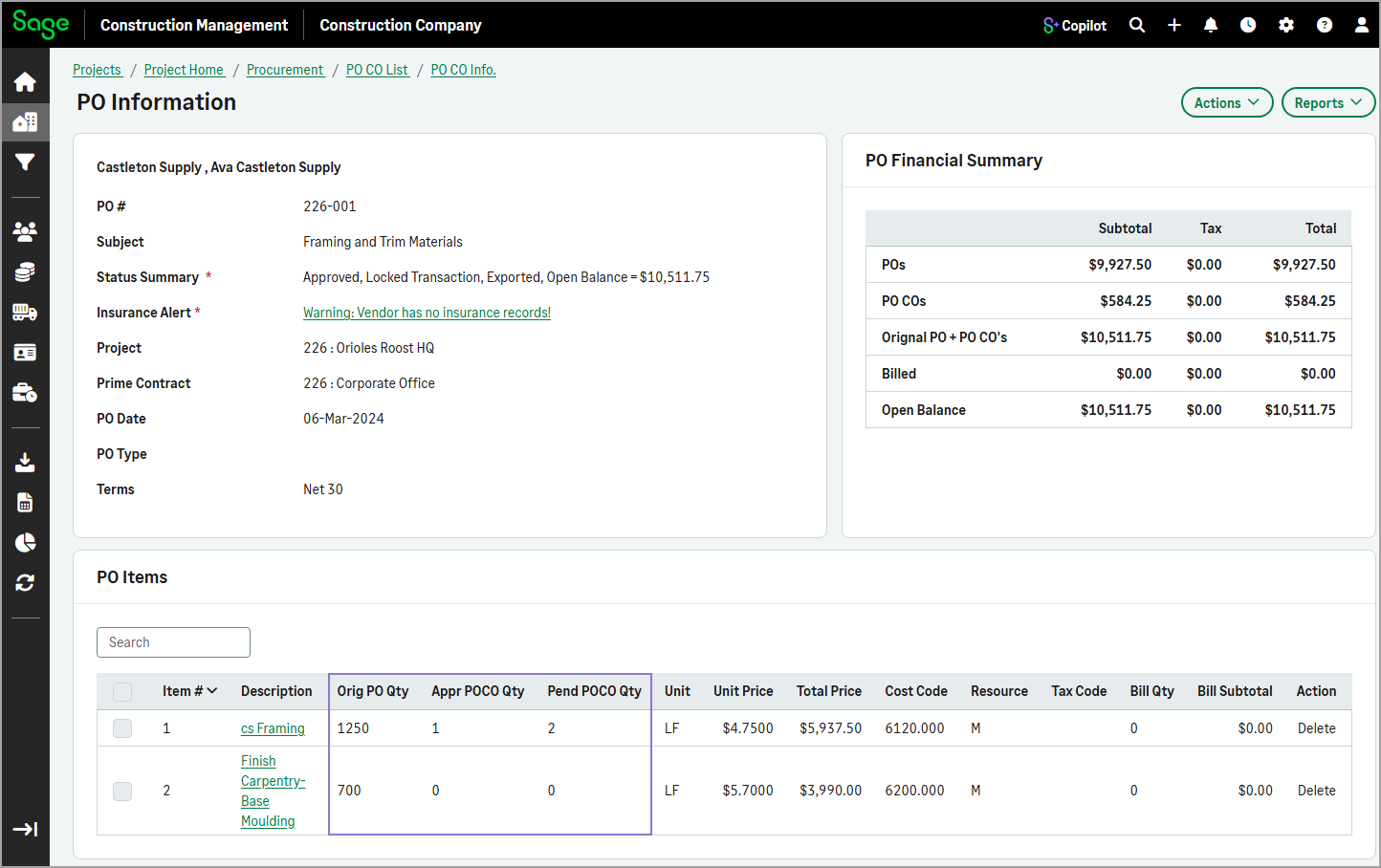
On the PO Information page, the PO Items section now includes Orig PO Qty, Appr POCO Qty, and Pend POCO Qty columns for each item. These columns display original purchase order (PO) quantities and the approved and pending purchase order change order (POCO) quantities.
In addition, the # of PO CO and PO CO Quantity columns have been removed.
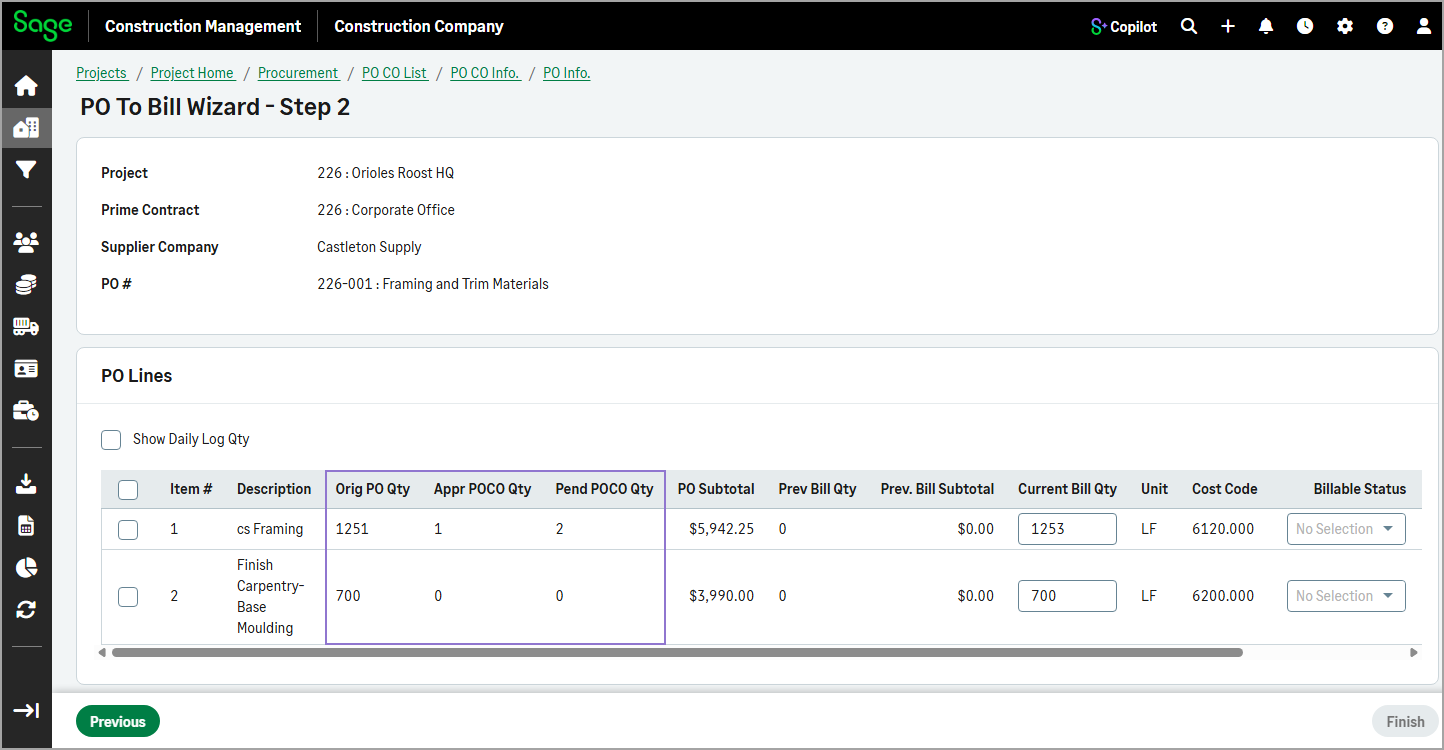
In the second step of the PO To Bill Wizard, the PO Lines section now includes Orig PO Qty, Appr POCO Qty, and Pend POCO Qty columns for each item. These columns display original purchase order (PO) quantities and the approved and pending purchase order change order (POCO) quantities.
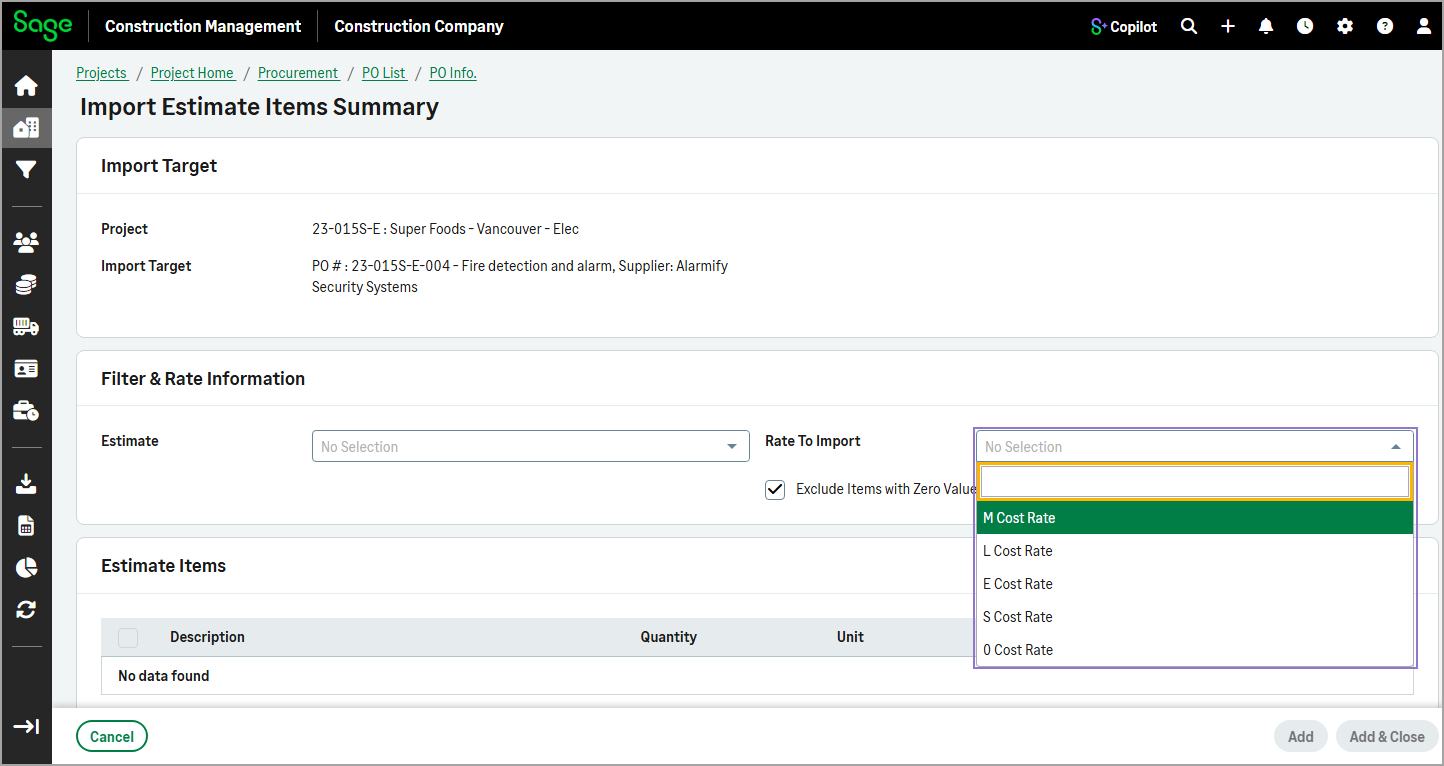
When importing estimate items or summarized estimate items into a PO, the following options are now available in the Rate To Import dropdown:
- M Cost Rate
- L Cost Rate
- E Cost Rate
- S Cost Rate
- O Cost Rate
The options import base cost rates without distributed global markups, using resource quantities, units, and cost rates for calculations.
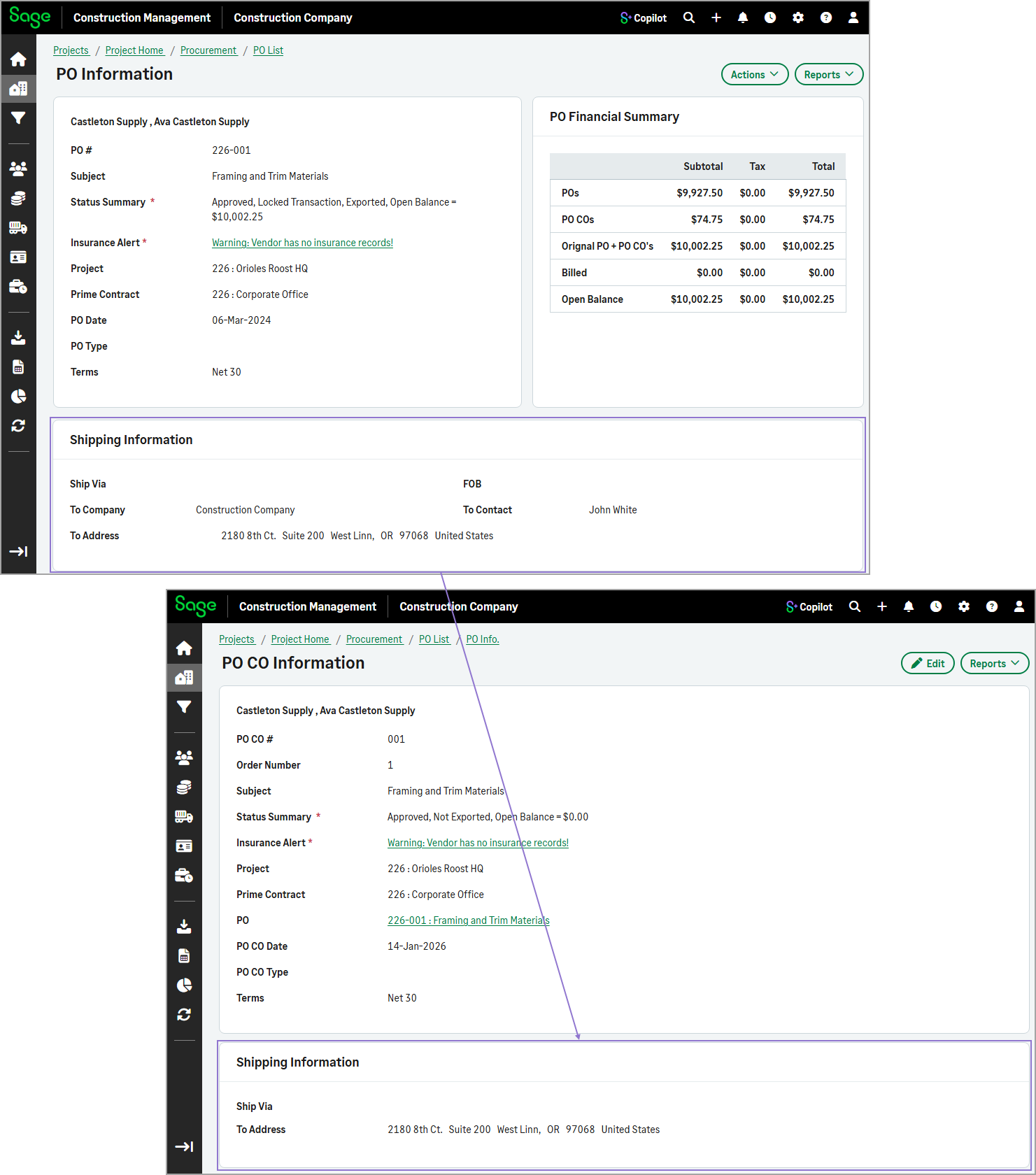
When you create a purchase order change order (POCO) from a purchase order (PO), the shipping address is automatically copied from the PO.
How it works
Open a project and select POs in the Procurement section.
Select a PO number from the list.
The PO Items section now displays the Orig PO Qty, Appr POCO Qty, and Pend POCO Qty columns.
To import estimate items into the PO, select Add / Import Items in the PO Items section and do the following:
Select Import Estimate Items or Import Estimate Items Summary.
Select the Estimate and one of the following options from the Rate To Import dropdown:
- M Cost Rate
- L Cost Rate
- E Cost Rate
- S Cost Rate
- O Cost Rate
Select the items and select Add & Close to return to the PO Information page.
After the PO is approved, do any of the following as needed:
To create a bill from the PO, select Actions > Create Bill From PO.
The PO Lines section now displays the Orig PO Qty, Appr POCO Qty, and Pend POCO Qty columns.
To create a PO CO from the PO, select Actions > Create PO CO for PO, complete the information as needed, and select Finish.
The shipping information on the PO CO Information page is automatically populated from the originating PO.