Drawing sets for organizing drawings
Related information
 Related topics
You can now use drawing sets to group and manage drawings more effectively when working with large sets of drawings.
Details
Drawing sets have been introduced to provide a structured way to organize drawings within a project. You can create and manage drawing sets and associate drawings with a specific set. Drawing set information is now available across multiple areas of the application, including drawing listings, reports, and drawing workflows.
Enhancements include the ability to view drawing set information in listings, group drawings by drawing set in reports, create and manage drawing sets in a dedicated form, and assign drawing sets during drawing creation or through bulk updates.
How it works
Create a drawing set
- Open the required project and select Drawings.
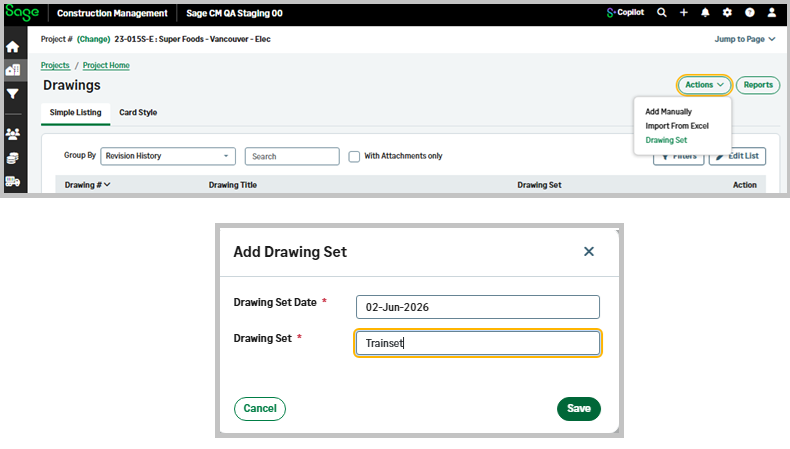
- Select Actions > Drawing Set > Add.
- Select a Drawing Set Date, enter a Drawing Set Name, and select Save.
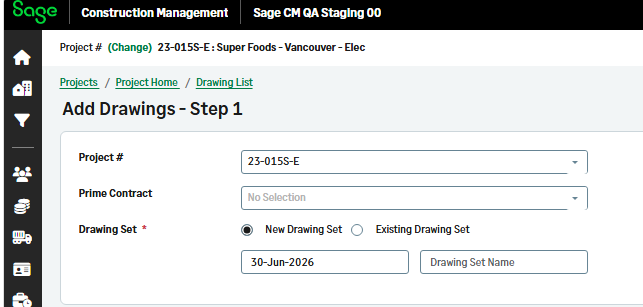
Add a new drawing set when creating a drawing
- Alternatively, select Actions > Add Manually to create a new drawing.
- Select New Drawing Set, enter a name for it, or select Existing Drawing Set and select an available set from the dropdown.
-
Add the needed files and select Next > Create.