Drawing sets for organizing drawings
Related information
 Related topics
You can now use drawing sets to group and manage drawings more effectively when working with large sets of drawings. Drawing sets can be selected directly from the drawings Simple Listing.
Details
Drawing sets have been introduced to provide a structured way to organize drawings within a project.
You can create drawing sets such as Bid Set, Build Set, Production Set, Red-Line drawings, or As Builts. Drawing sets labels identify the different evolutions of the drawings throughout the construction progress.
You can also manage drawing sets and associate drawings with a specific set. Drawing set information is now available across multiple areas of the application, including drawing listings, reports, and drawing workflows.
Enhancements include the ability to view drawing set information in listings, group drawings by drawing set in reports, create and manage drawing sets in a dedicated form, and assign drawing sets during drawing creation or through bulk updates.
How it works
Create a drawing set
- Open the required project and select Drawings.
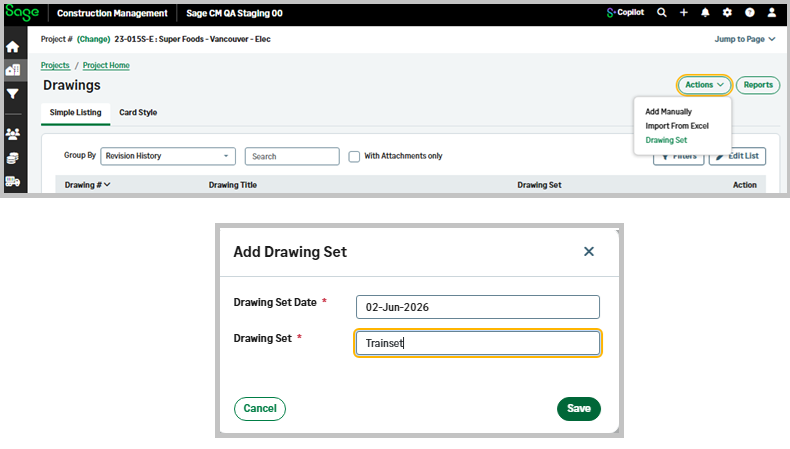
- Select Actions > Drawing Set > Add.
- Select a Drawing Set Date, enter a Drawing Set Name, and select Save.
Add a new drawing set when creating a drawing
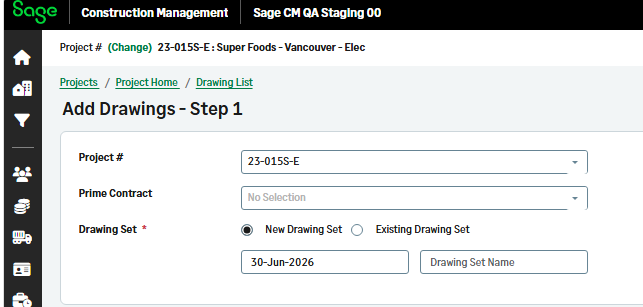
- Alternatively, select Actions > Add Manually to create a new drawing.
- Select New Drawing Set, enter a name for it, or select Existing Drawing Set and select an available set from the dropdown.
-
Add the needed files and select Next > Create.
View and edit the drawing set in Simple Listing
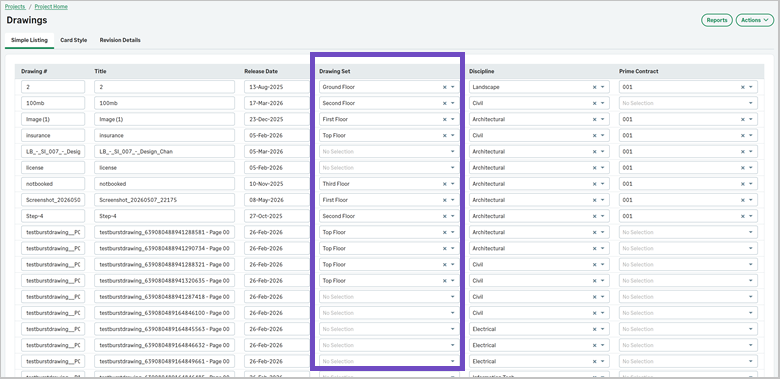
Drawing sets now appear in the Simple Listing page. You can edit the Drawing Set directly in the list.
- Open the Drawings page and select Simple Listing.
- Select Edit List to enable editing.
- Select the required values from the Drawing Set dropdown.
- Select Save.
Select drawing set for multiple drawings through bulk actions
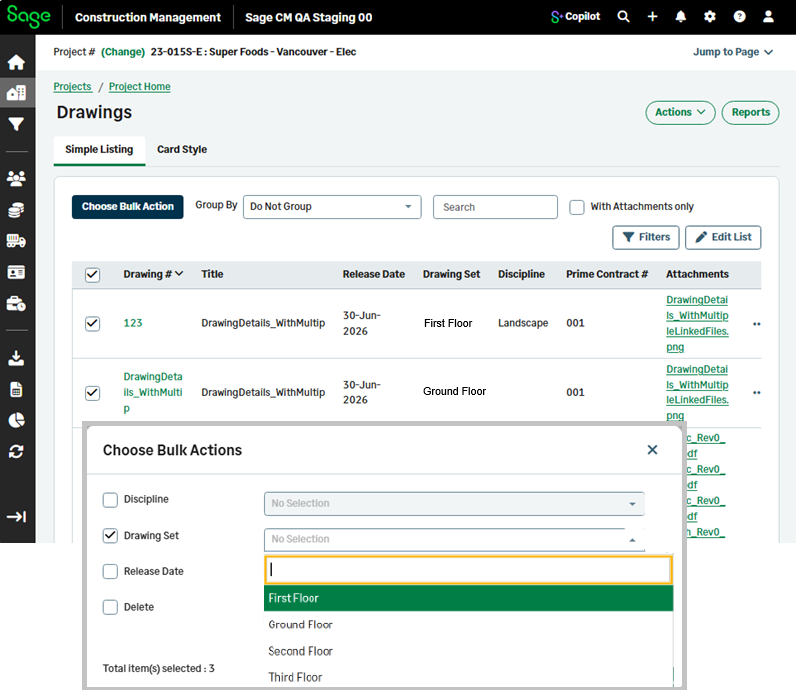
You can assign a drawing set to multiple drawings at once using the Bulk Actions option in Simple Listing.
-
Open the Drawings page and select Simple Listing.
-
Select the drawings that you need to link to the drawing set and select Choose Bulk Action.
The Choose Bulk Action option appears only when the Group By dropdown is set to Do Not Group. -
Select drawing set, select the required drawing set from the dropdown and select Save.