Drawing set enhancements for new projects and leads
Related information
 Related topics
You can now assign drawings to a drawing set during the upload process when creating a new project or lead. This helps ensure that drawings are organized and categorized correctly from the moment they’re added.
Details
The following enhancements have been made to the project and lead creation workflow:
-
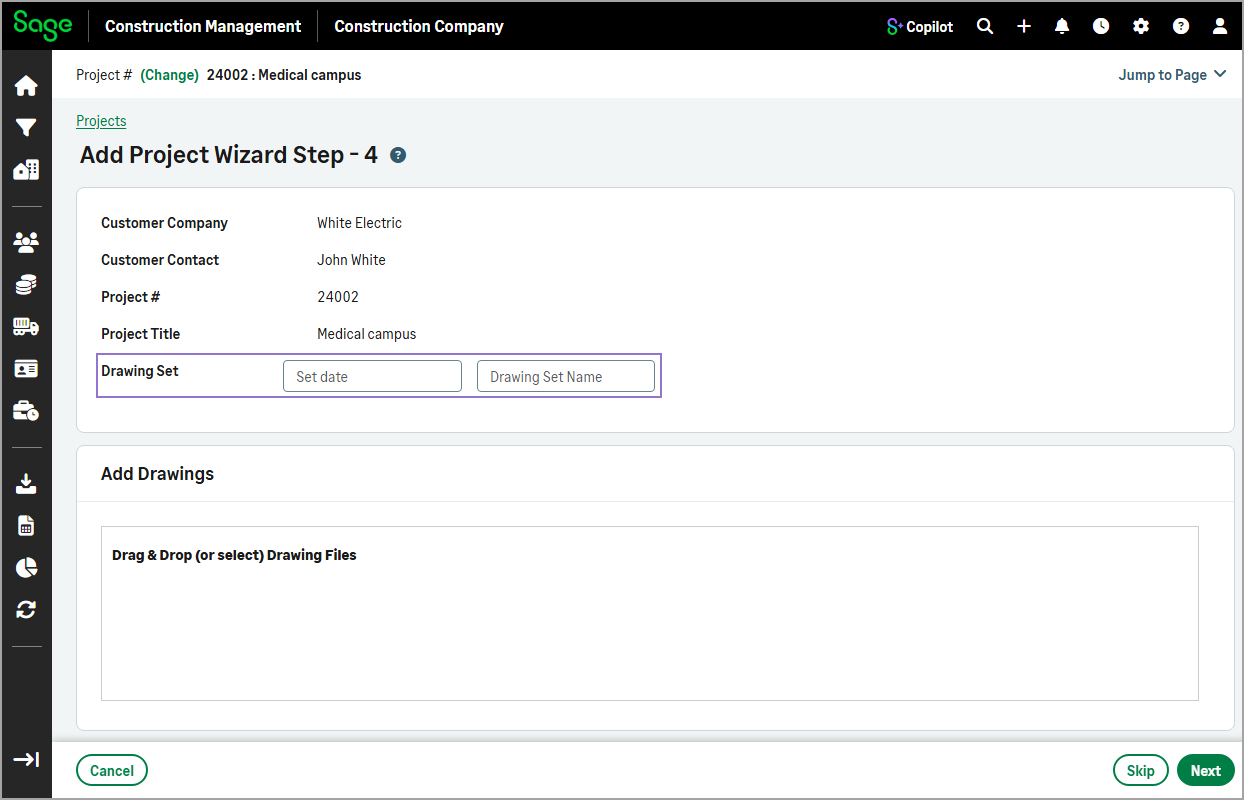
Step 4 - Add drawings: Now specify both a drawing set date and name when uploading drawings.
-
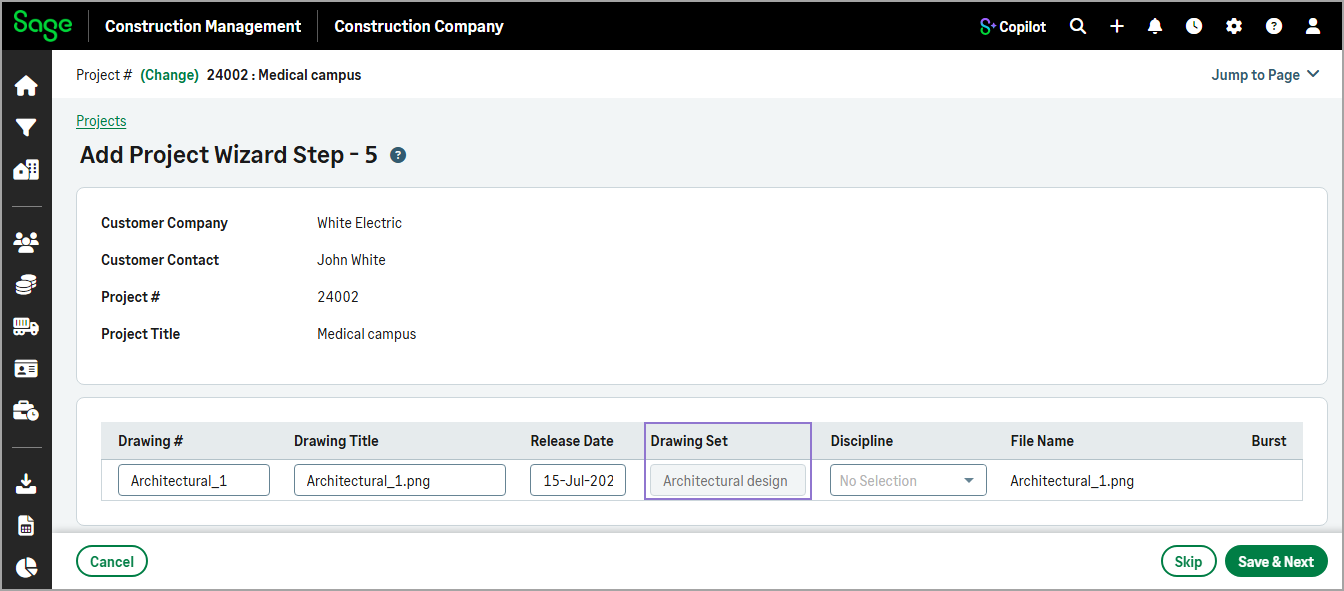
Step 5 - Review and edit drawing logs: A new Drawing Set column has been added to the drawing log, displaying the drawing set associated with each drawing. This field is read-only.
How it works
-
Go to Projects or Leads and select Actions > Add Manually to create a new project or lead.
-
Complete the required information in Steps 1–3.
-
In Step 4, select the drawing set date and enter the Drawing Set Name.
-
Drag and drop the drawing files into the upload area, and then select Next.
-
In step 5, review the information for each drawing.
The Drawing Set column displays the name of the drawing set associated with each drawing.
-
Select Save & Next, and then complete the remaining steps in the wizard.