Leads and Projects page enhancements
You can now view customer information directly from the Leads and Projects list pages and quickly identify records that are not associated with a customer.
Details
The Leads and Projects list pages now include the following options:
-
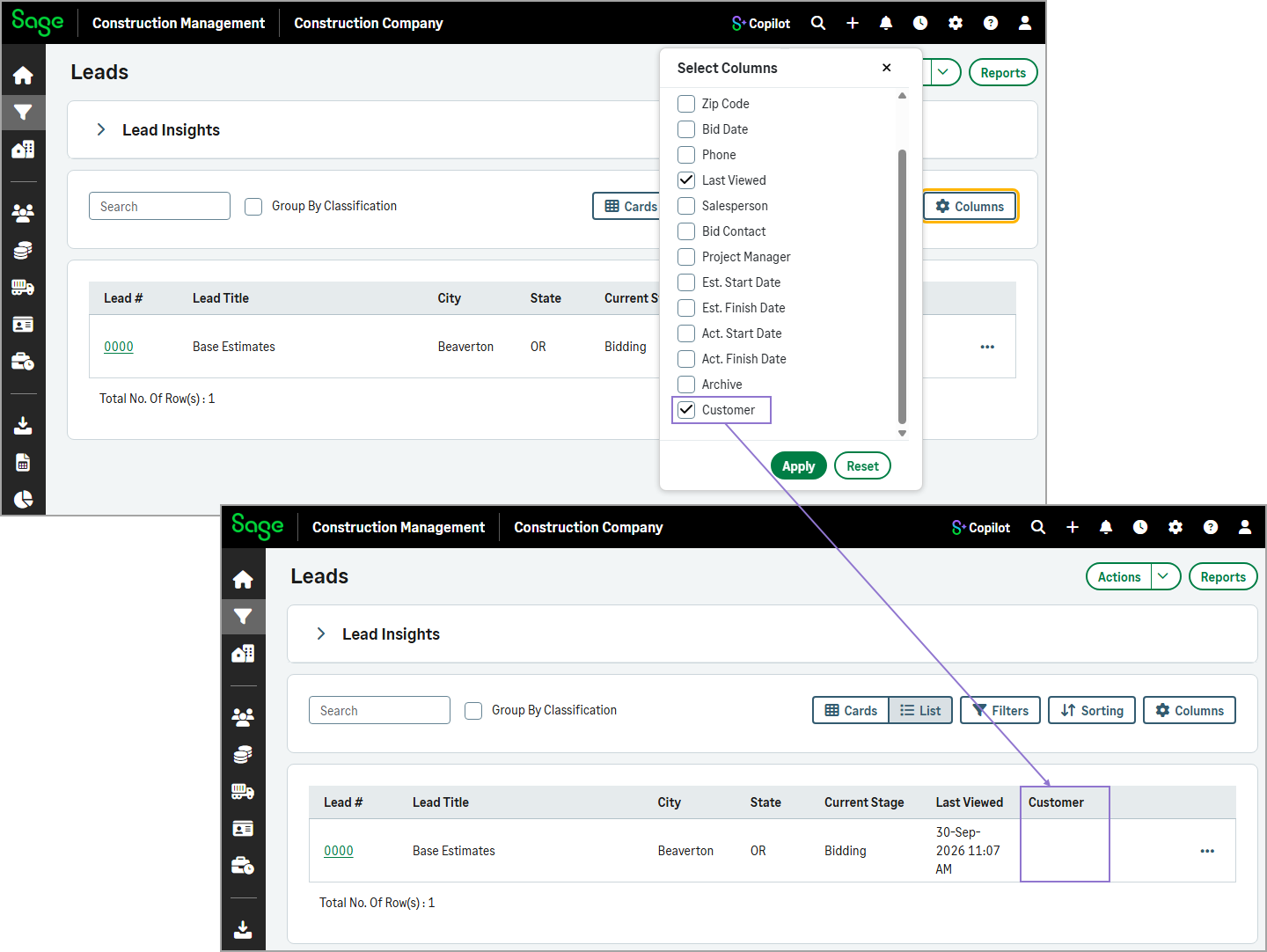
Customer column: Add the Customer column to the list view to display the customer associated with each lead or project.
-
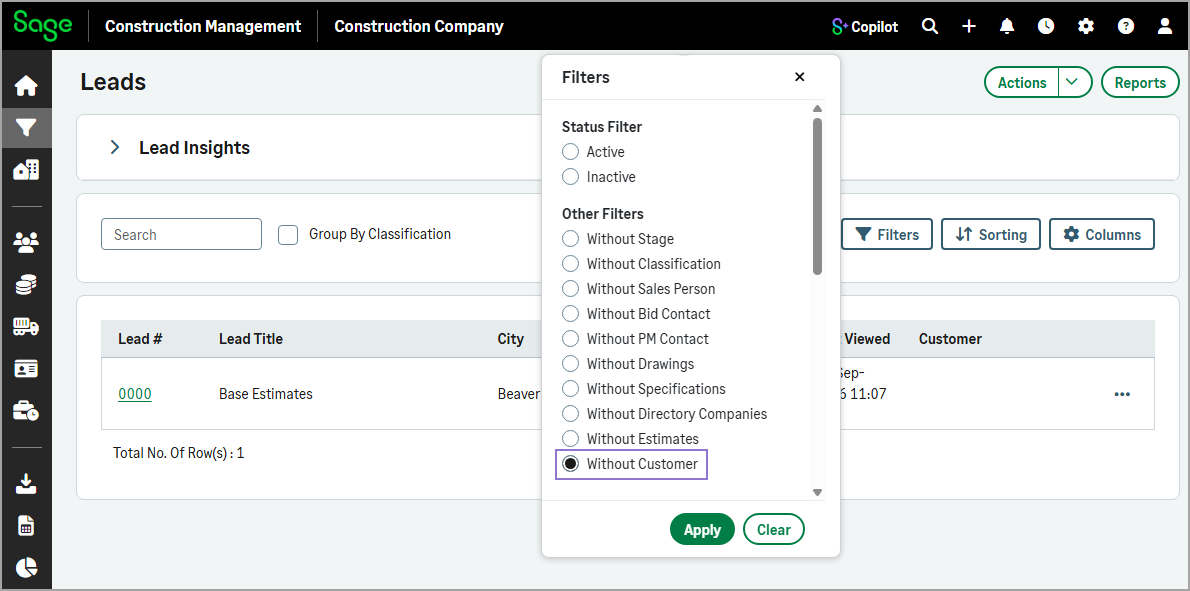
Without Customer filter: Use the Without Customer filter in both card and list views to display only leads or projects that do not have a customer assigned.
Key benefits
-
Quickly identify the customer associated with each lead or project.
-
Easily find leads and projects that require customer information.
How it works
- Go to Leads or Projects.
- To view the Customer column:
- Select the List view.
- Select Columns.
- In the dialog, select the Customer checkbox and then select Apply.
- To view leads or projects that do not have a customer assigned:
- Select Filters.
- In the dialog, select Without Customer in the Other Filters section and then select Apply.