New Documentation Viewer
Related information
 Related topics
The new Documentation Viewer features a cleaner, more consistent toolbar layout with updated options across annotation, measurement, and review tools.
 Watch the training video in Sage University for an overview of available features.
Details
The Documentation Viewer now features a cleaner, more consistent toolbar layout with updated options across annotation, measurement, and review tools.
Left panel behavior and footer layout have been refined, menus are easier to navigate, and several tools have been improved for reliability and clarity. These updates make it easier to find, use, and manage document tools while reviewing drawings and documents.
It supports the following file formats:
-
PDF formats, such as PDF, FDF, XFDF, PDF/A-1, A-2, A-3, and PDF 1.0 to 2.0 (ISO 32000-1:2008, 32000-2:2017)
-
Office formats, such as DOC, DOCX, XLS, XLSX, PPT, PPTX, and PUB
-
CAD formats, such as DWG, DXF, DGN, RVT, and DWF.
The redesign includes improvements to:
-
Left panel options and footer layout
-
Toolbar layout and submenu behavior
-
Annotate, Measure, and Review tab options
-
Status options and icon consistency
-
Snipping, calibration, measurement, stamp, and signature tools
When working in the Documentation Viewer, tools are now grouped more intuitively across the toolbar and left panel. Submenus can be minimized, commonly used options are easier to access, and updated tool behavior provides a smoother, more consistent document review experience.
Prerequisites and important things to know
-
To view uploaded files, you must allow popups in your browser.
-
Old and New Document Viewers are available in Sage Construction Management, the mobile app, and the TeamLink Portal.
-
Users can edit or delete only their own annotations.
-
Annotations applied to a file in the Old Viewer must be saved within 20 minutes of adding them.
-
Search is available for specific file types. For example, an image with text that is saved in PDF format is not searchable. However, Microsoft Word file that is saved in PDF format is searchable.
-
The Old Viewer has some limitations when it comes to File Size.
-
Files up to 20MB can be opened directly in the Document Viewer.
-
For files between 20MB and 50MB, a warning message will request confirmation to open the file in the Document Viewer.
-
Files larger than 50MB cannot be opened in the Document Viewer and must be downloaded to view.
How it works
-
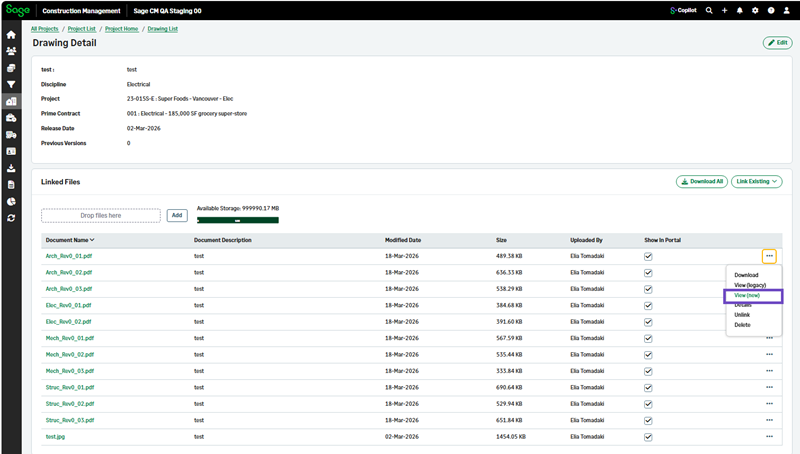
Go to Projects and select the appropriate project from the list.
- Select Drawings.
- Select a Drawing #.
- Select View (New) from the three-dot menu on the right of the required drawing.
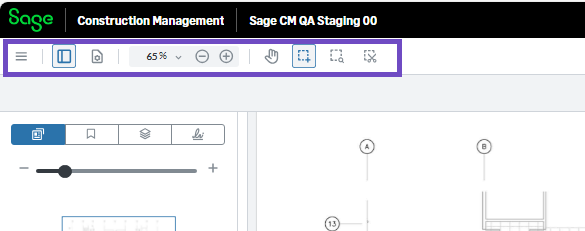
- Select any of the tool bar tools, such as the snipping or marquee zoom, tool, zoom in and out, etc.
- Select to view the left panel.
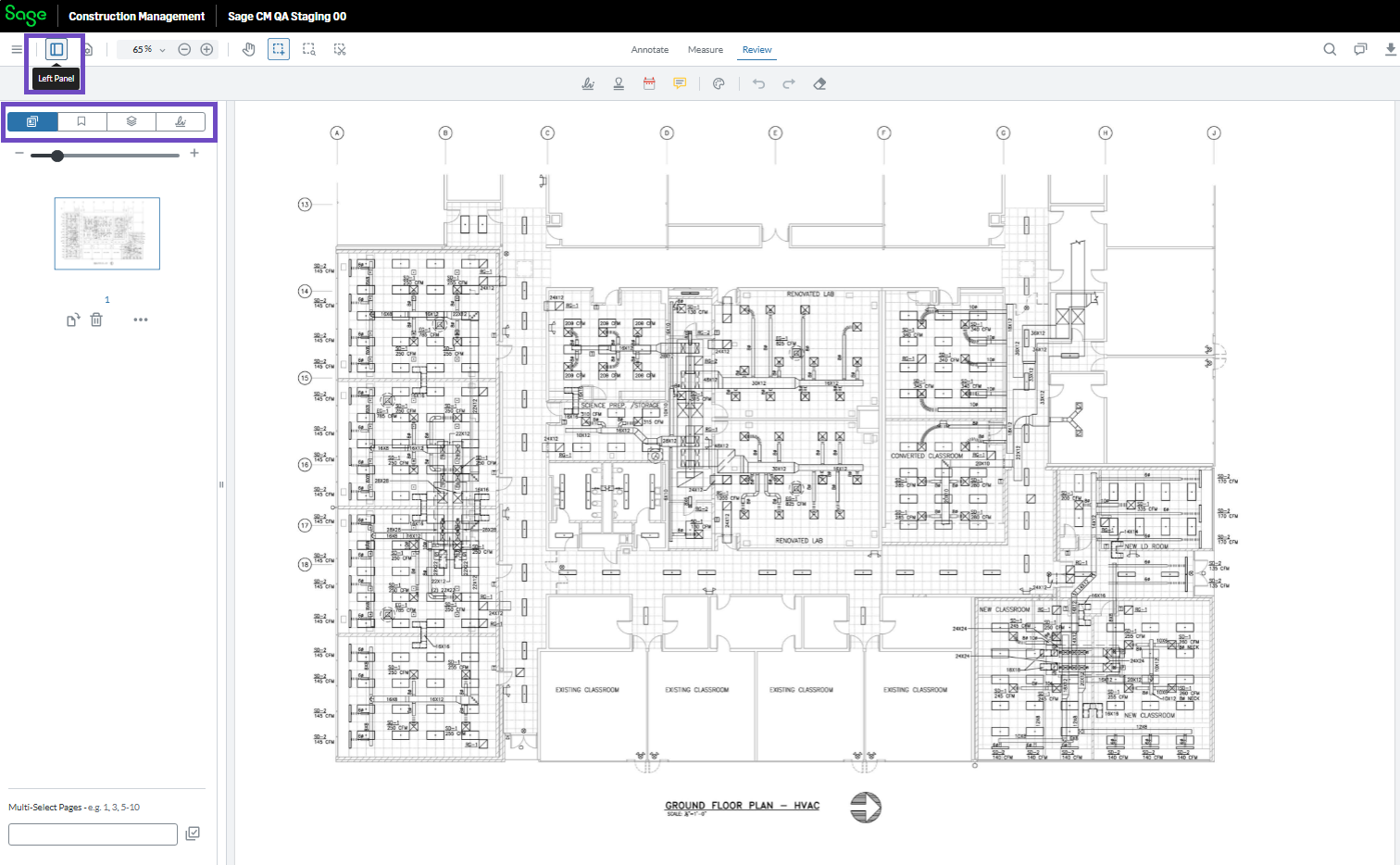
- Select the required tab:
- Annotate: The Annotate tab provides tools for adding comments, markups, and visual notes directly to documents. You can highlight content, add text notes, draw shapes, apply stamps or signatures, and make other annotations to communicate feedback or clarify information without altering the original document.
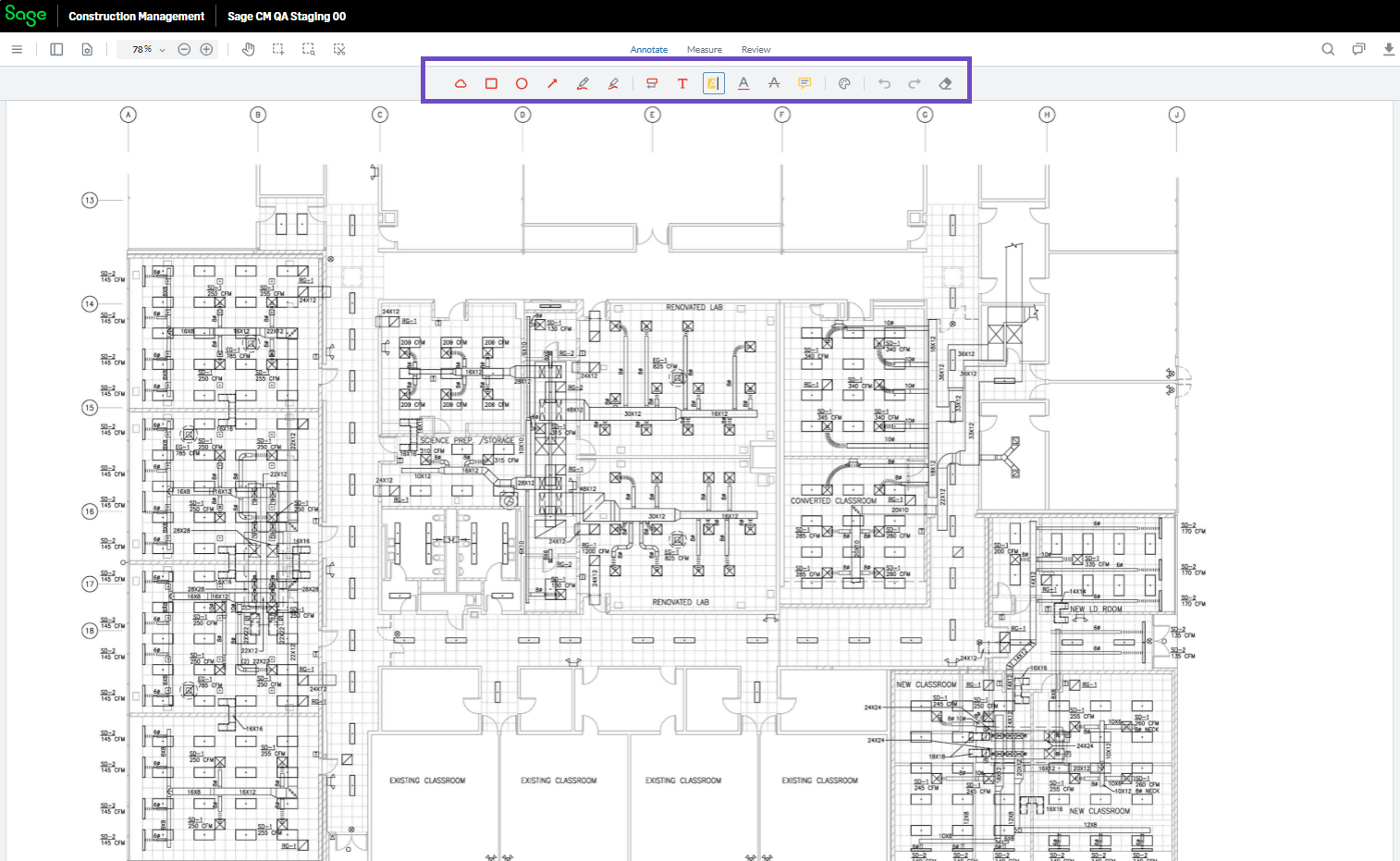
- Measure: The Measure tab includes tools for taking accurate measurements directly from drawings and plans. You can measure distance, area, perimeter, and other dimensions, helping you extract quantities and verify scale while reviewing construction documents.
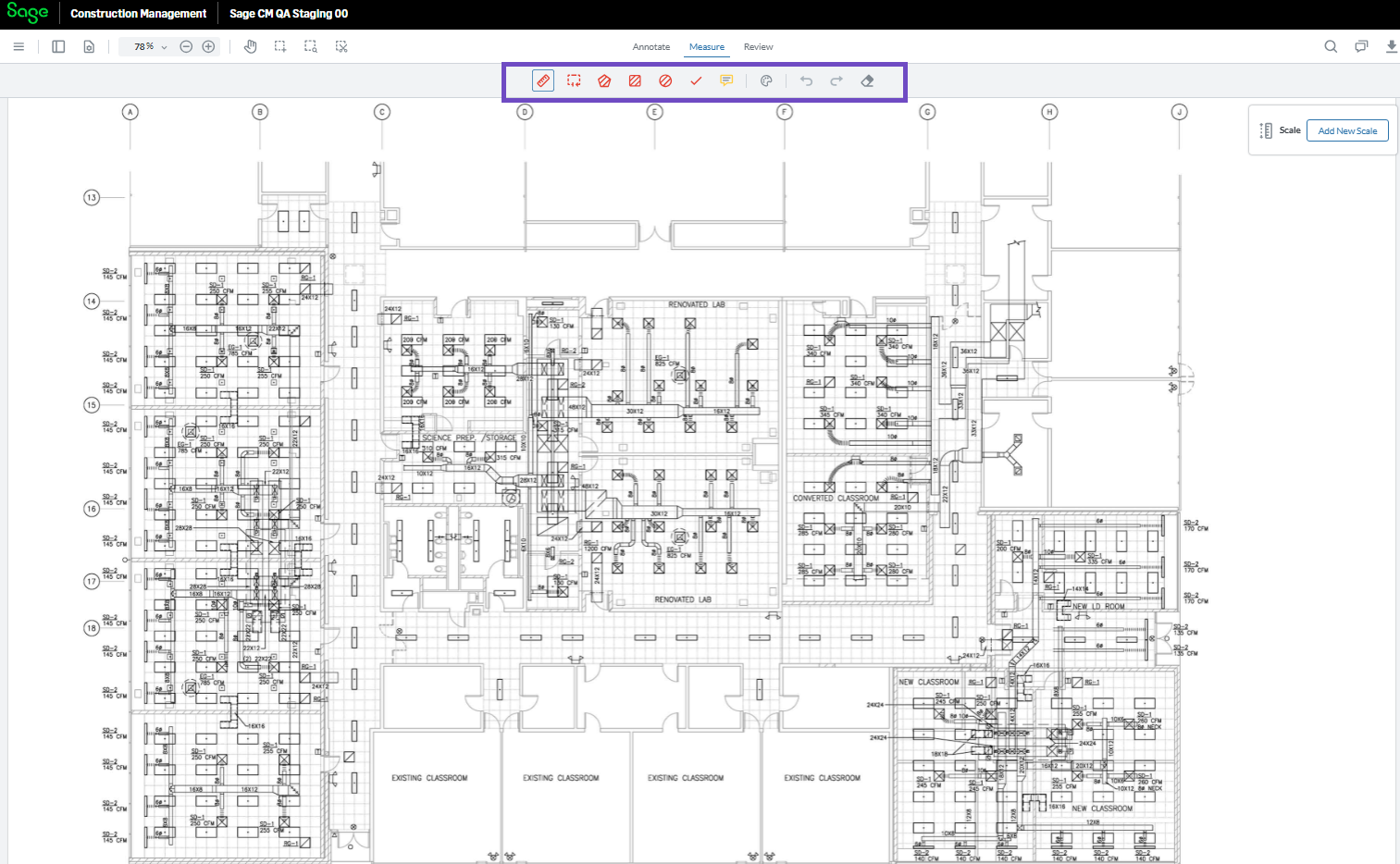
- Review: The Review tab offers tools that support document review and collaboration. You can manage review statuses, inspect annotations, and track feedback and progress as documents move through the review process.
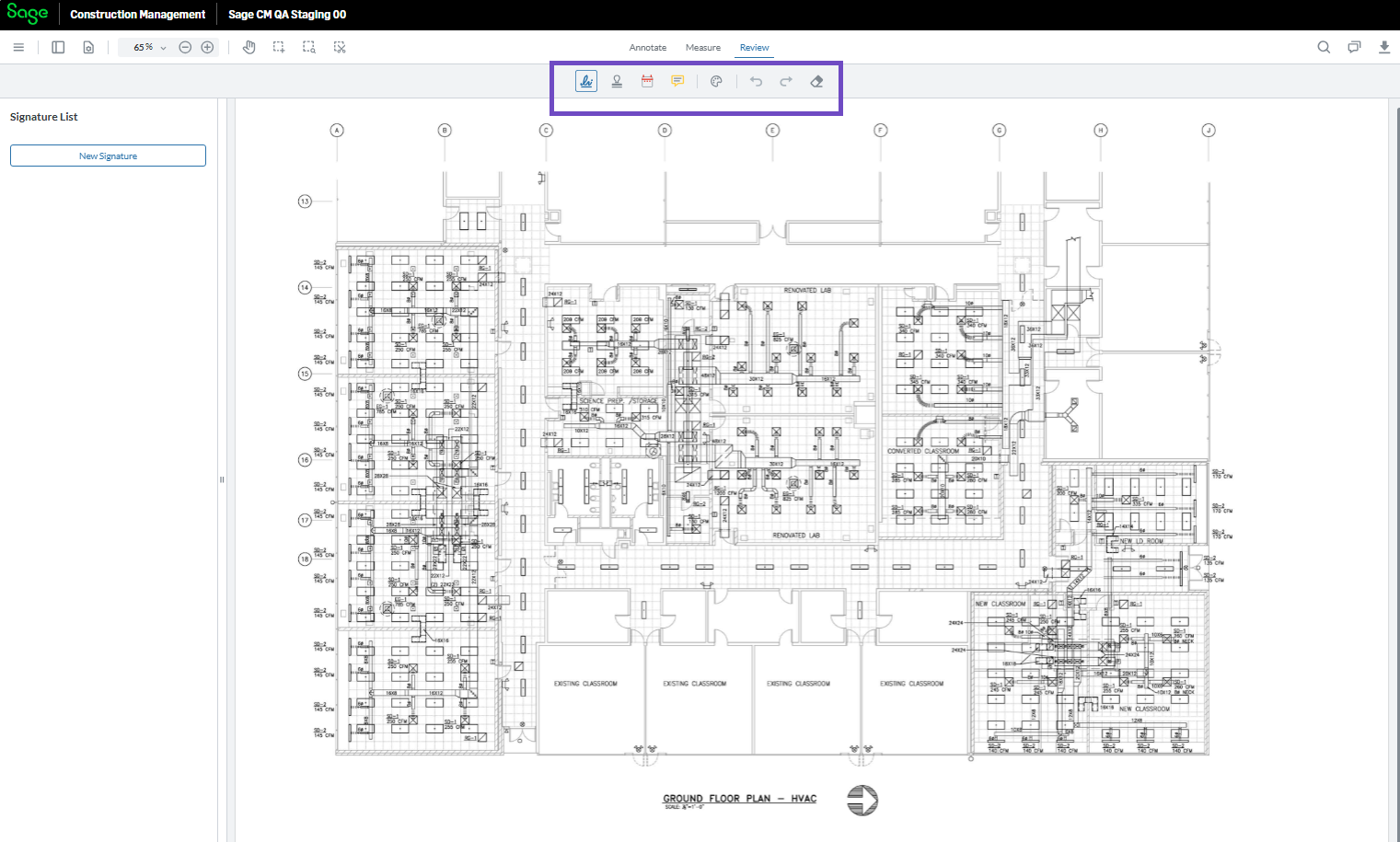
- Annotate: The Annotate tab provides tools for adding comments, markups, and visual notes directly to documents. You can highlight content, add text notes, draw shapes, apply stamps or signatures, and make other annotations to communicate feedback or clarify information without altering the original document.