Enhanced drawing revision and burst drawing management
Related information
 Related topics
Drawing revision workflows have been improved to ensure drawing metadata, versioning, file associations, revision history, and burst generated drawings are managed and displayed consistently throughout Sage Construction Management.
Details
This release includes fixes for multiple issues affecting the creation, revision, and management of drawing records, such as:
-
Improved handling of drawing metadata to ensure drawing numbers, titles, release dates, file names, version numbers, and parent-child relationships are maintained correctly throughout the drawing lifecycle.
-
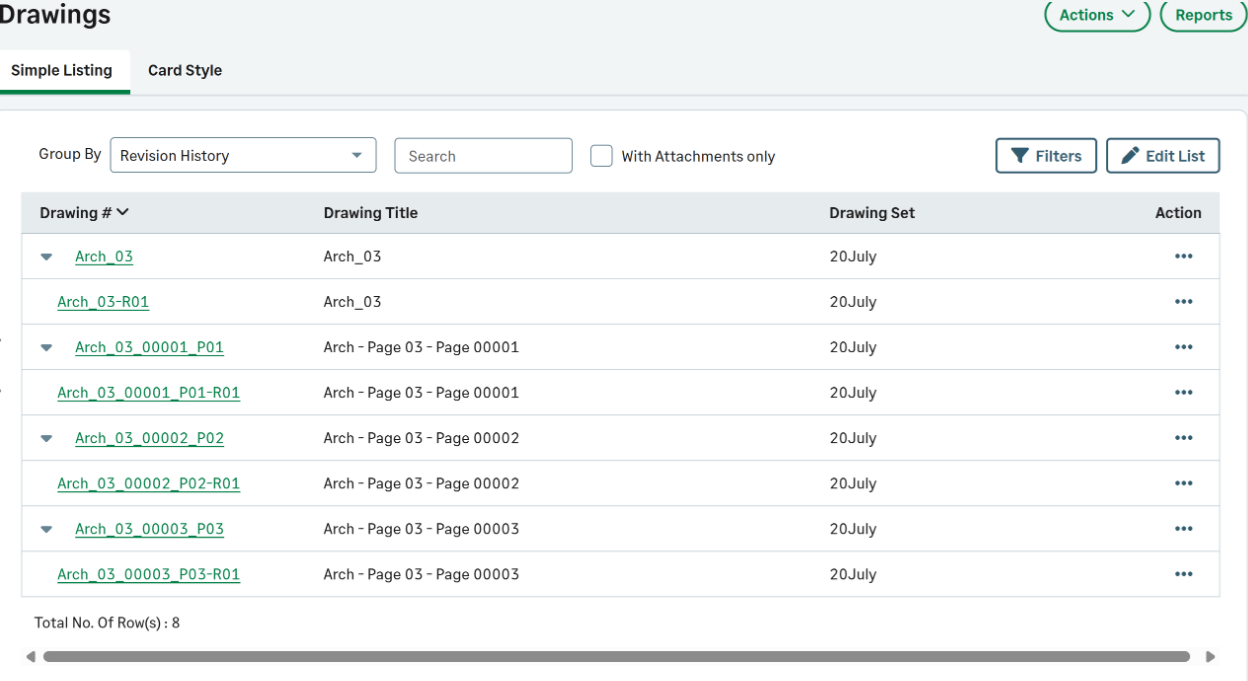
Improved drawing numbering for revisions and burst generated drawings by automatically assigning unique drawing identifiers while preserving relationships to the original drawing record.
-
Enhanced drawing hierarchy management to ensure original drawings, revisions, burst generated drawings and related revisions are grouped and displayed correctly throughout the application.
How it works
- Go to Leads or Projects and select a lead or project from the list.
- On the Lead or Project page, select Drawings in the Lead Library or Project Library category of the Lead Menu or Project Menu section.
- Select Actions > Add Manually.
- Select a drawing set.
- Drag and drop files as needed and select Next.
- Select a Discipline from the dropdown.
- If the file is a multiple page PDF, select Burst to create a separate drawing record for each page.
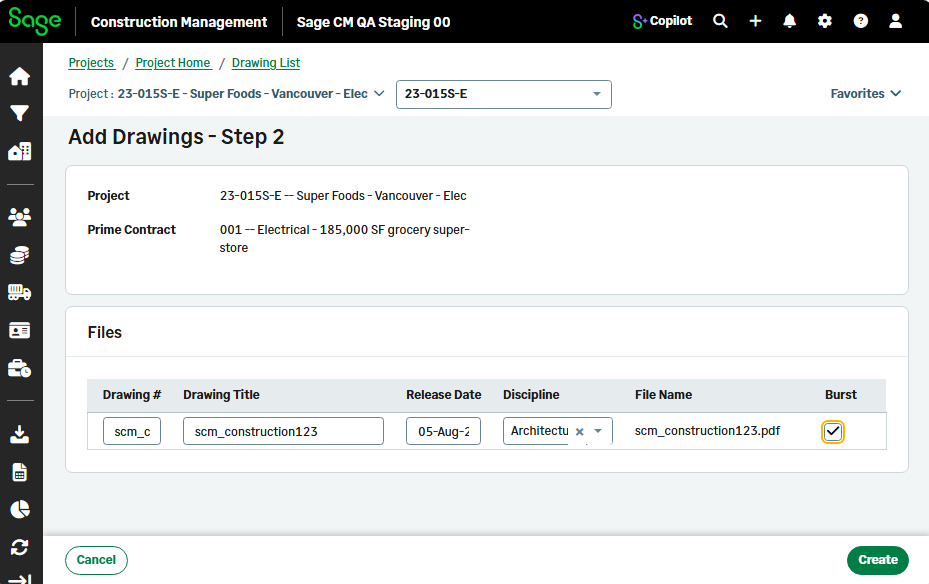
- Select Create.
You can view the separate drawing records in the Simple Listing.