Alert and calendar enhancements
Related information
 Related topics
The Alert Calendar shows both assigned scheduling tasks and project to‑do alerts, and a new filter lets you control which to‑dos appear. In the alert settings, you can also choose whether to receive alerts for tasks assigned to you, not assigned to you, or both.
Details
-
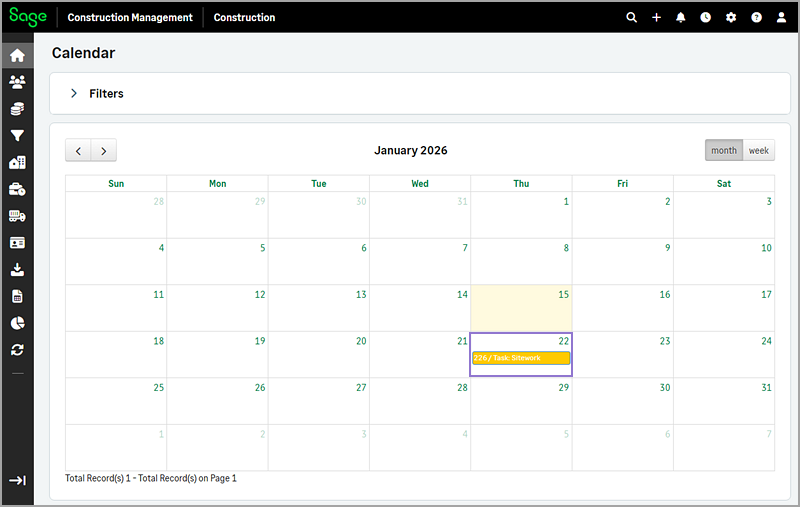
In the alerts calendar, you can view:
-
Alerts for the assigned scheduling tasks.
-
Project to-do alerts.
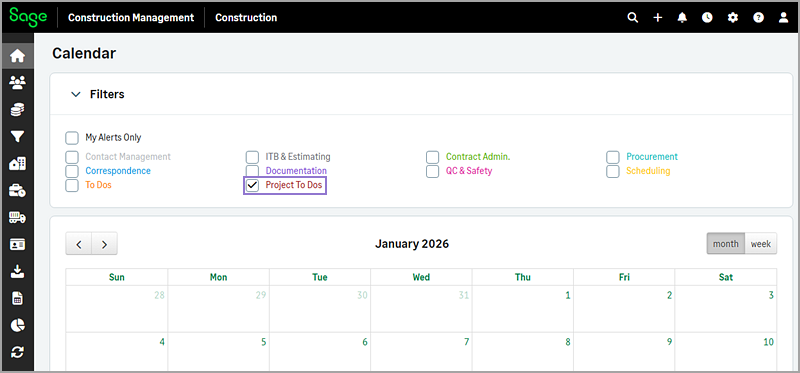
A new Project To Dos filter has also been added, allowing you to control whether project to-do alerts appear on the calendar.
-
-
On the Alert Setting page:
-
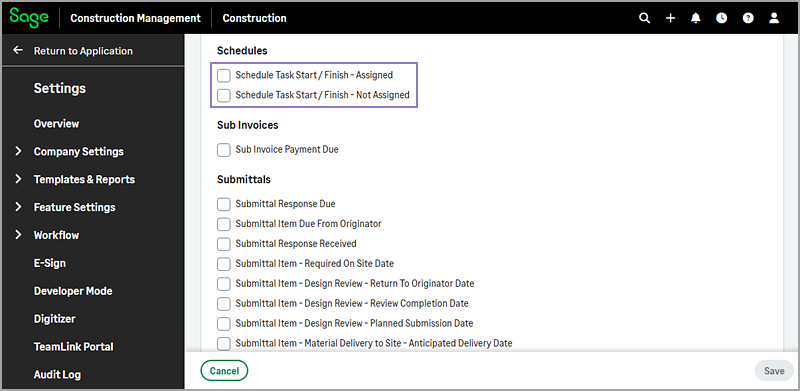
You can now select to receive alerts for scheduling tasks that are assigned to you, not assigned to you, or both. The former Schedule Task Start / Finish option has been replaced with two new options: Schedule Task Start / Finish – Assigned and Schedule Task Start / Finish – Not Assigned.
-
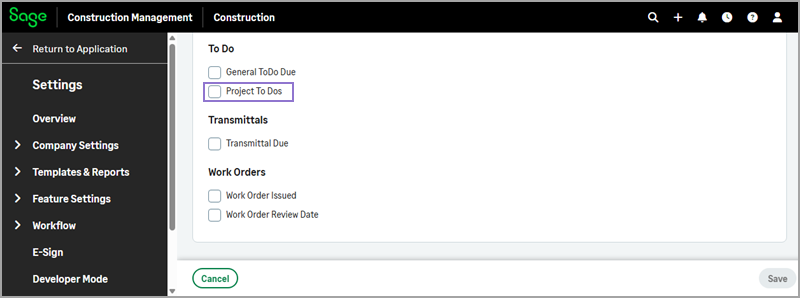
The Project To Dos option can now be found under the To Do section.
-
How it works
- To view project to-do and scheduling alerts:
- Select the Alerts icon (
 ).
). - In the dialog, select Alert Calendar.
Any project to-dos due in the current month and scheduling tasks with start or finish dates in the current month, appear in the calendar, depending on your alert settings.
Optionally, to display only project to-do alerts, clear all the checkboxes under Filters and leave only the Project To‑Dos checkbox selected.
- Select the Alerts icon (
- To configure the alert preferences for scheduling tasks and project to-dos:
- On the Sage Construction Management Home page, select the Alerts tab.
- Select Set Alerts.
- In the Scheduling section, select Schedule Task Start / Finish – Assigned, Schedule Task Start / Finish – Not Assigned, or both.
- In the To Do section, select Project To Dos.