Crew leader details in labor and equipment timecards
Related information
 Related topics
This release introduces enhancements in the labor and equipment timecard workflows to manage crew-level information and timecard details by crew leader.
Details
You can now view the Crew Leader name on the labor timecard. You can also select to view a column with the crew leader names in the labor and equipment timecard pages. The crew leader names are linked to the crew timecard pages, improving visibility and filtering capabilities. You can also select to view a summary of all details of a crew timecard.
How it works
To view the crew leader name:
-
Go to Projects and open the required project.
-
On the project's homepage, select Lbr. Timecards or Eqp. Timecards.
-
On the Lbr. or Eqp. Timecard listing, select a timecard.
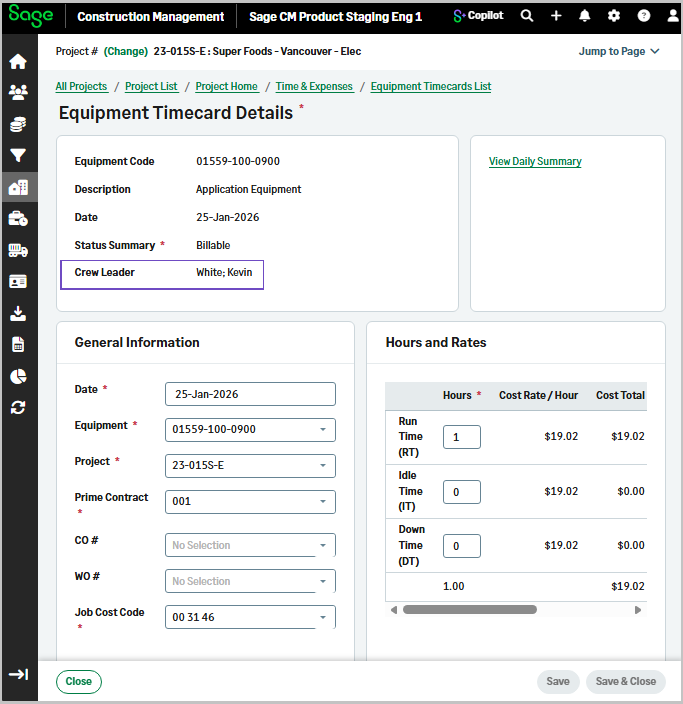
The crew leader name appears in the end of the first section.
To display the Crew Leader columns:
-
Go to Projects and open the required project.
-
On the project's homepage, select Lbr. Timecards or Eqp. Timecards.
-
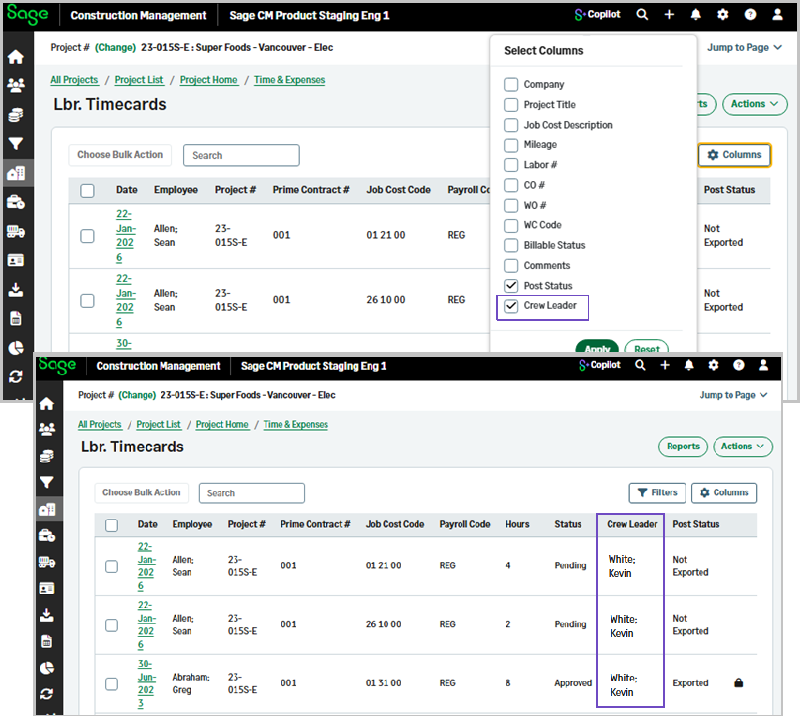
Select Columns, check the Crew Leader checkbox, and select Apply.
The Crew Leader column displays with the crew leader names, which link to the crew timecard page.
To view the crew leader summary:
-
Go to Projects and open the required project.
-
On the project's homepage, select Lbr. Timecards or Eqp. Timecards.
-
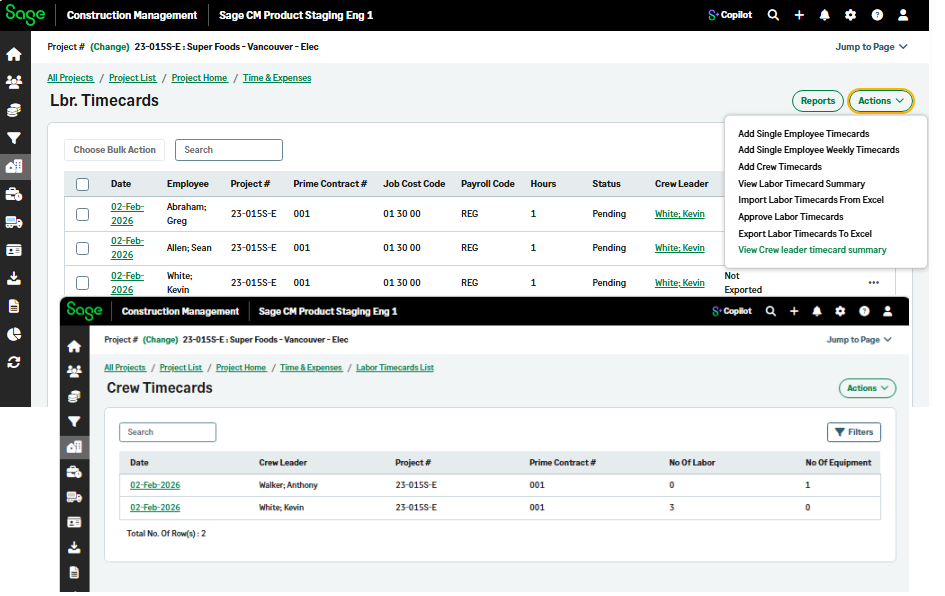
Select View Crew leader timecard summary.
The crew leader timecard summary displays with the following details:
-
Crew leader
-
Project #
-
Prime Contract #
-
No of Labor
-
No of Equipment
-
-
Select Actions > Add Crew Timecards.