New CPA/Sage Partner licenses for external users
Related information
 Related topics
You can now create accounts for partners and consultants in Sage Construction Management using the new CPA/ Sage Partner login licenses.
Details
Partners and consultants are provisioned as external users, which sign in directly with their Sage Construction Management credentials. External users can be assigned one of the following roles, which control the user's permissions and visibility:
-
Administrator: The external user has full access to all projects and features.
-
Read Only: The user has read only access to all projects and features.
How it works
Enable external authorizations for a company
- Log in to Sage Construction Management as an Administrator.
-
Go to Contact Management and open the Company Profile page.
-
Select Edit.
-
Select the CPA/ Sage Partner checkbox and save your changes.
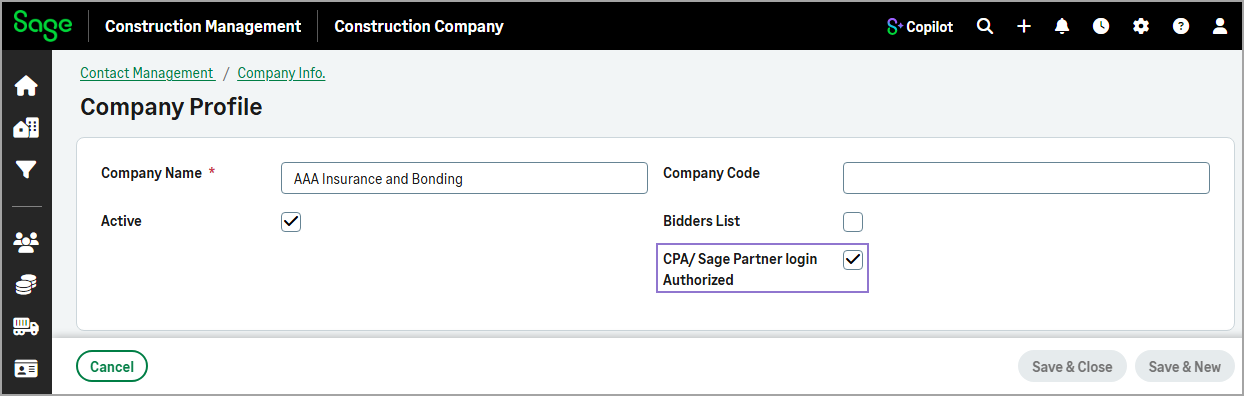
On the Company Profile page, the CPA/ Sage Partner checkbox in the General Information section shows whether external authorizations are enabled for the company.
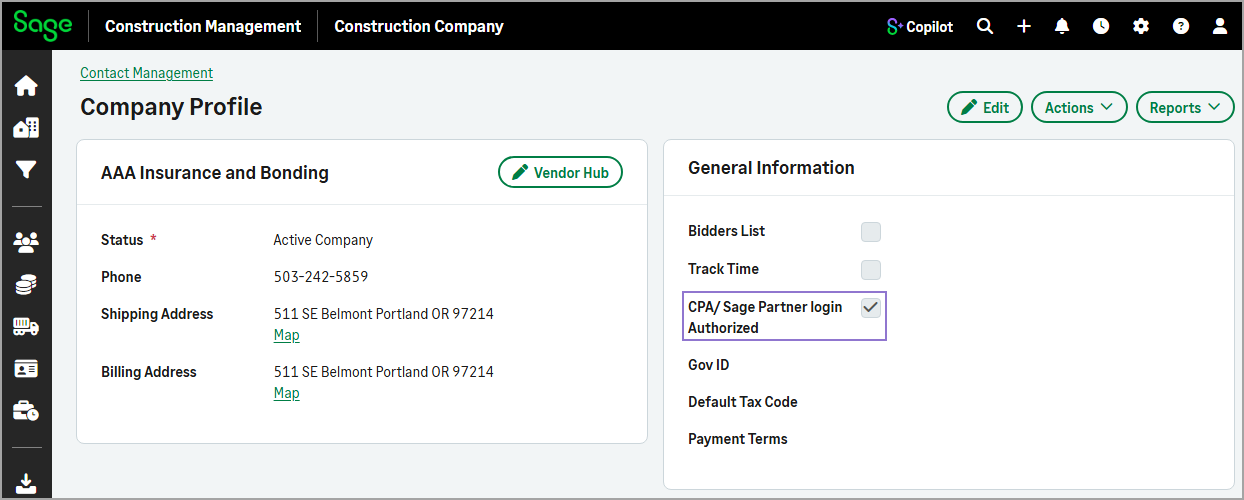 Companies configured to support CPA/Sage Partner authorized users cannot use the TeamLink portal. A company can be configured for either TeamLink portal users or CPA/Sage Partner authorized users, but not both.
View and create externally authorized users
- Log in to Sage Construction Management as an Administrator.
-
Go to Settings (
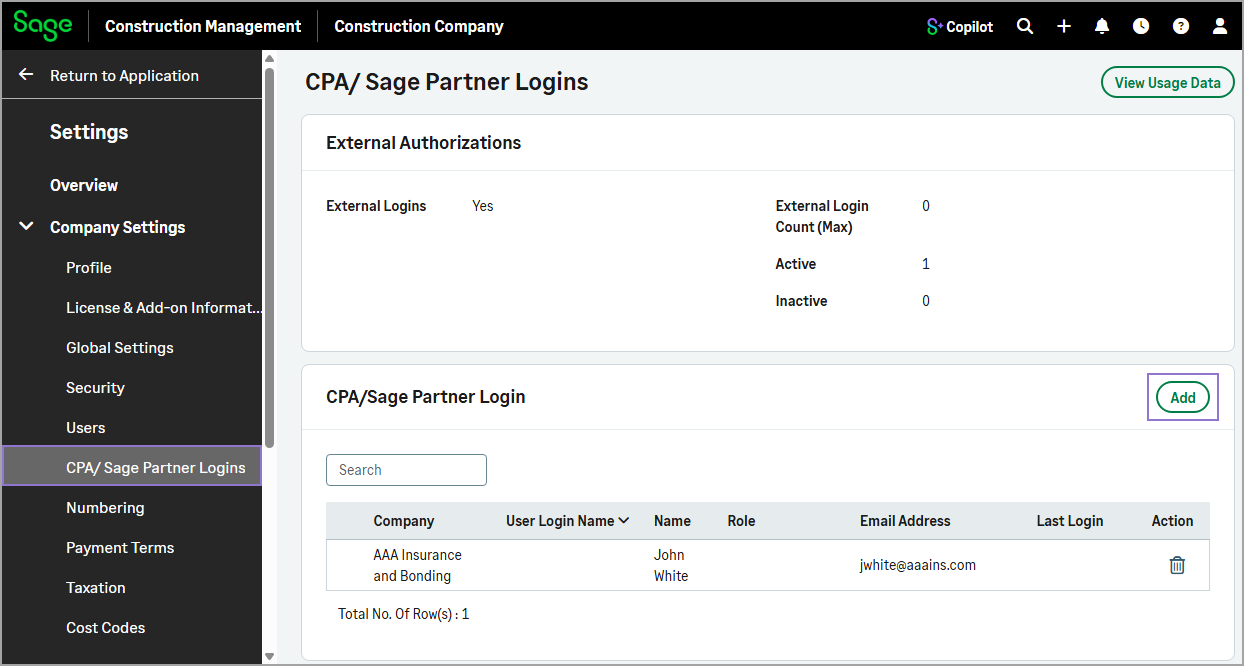
 ) > Company Settings > CPA/Sage Partner Logins.
The externally authorized users summary displays in the External Authorizations section and the externally authorized users display in the CPA/Sage Partner Login section.
-
To add an externally authorized user, in the CPA/Sage Partner Login section select Add and do the following:
-
To add an existing contact as an externally authorized user:
-
Select Add New External Authorized User from Existing Contacts.
-
Select the External Company.
The dropdown displays only companies that have the CPA/ Sage Partner checkbox selected on the Company Profile page.
-
Select the External User.
-
Enter the Business Email and User Login name.
-
Select the appropriate Role.
-
-
To add a new contact as an externally authorized user:
-
Select Add New External Authorized User from New Contact.
-
Select the External Company.
The dropdown displays only companies that have the CPA/ Sage Partner checkbox selected on the Company Profile page.
-
Enter the First Name, Last Name, and Business Email.
-
Select the appropriate Role.
-
-
Select Send Login.
The external user receives an email with instructions for creating a password.
-
View externally authorized users for a company
- Log in to Sage Construction Management as an Administrator.
-
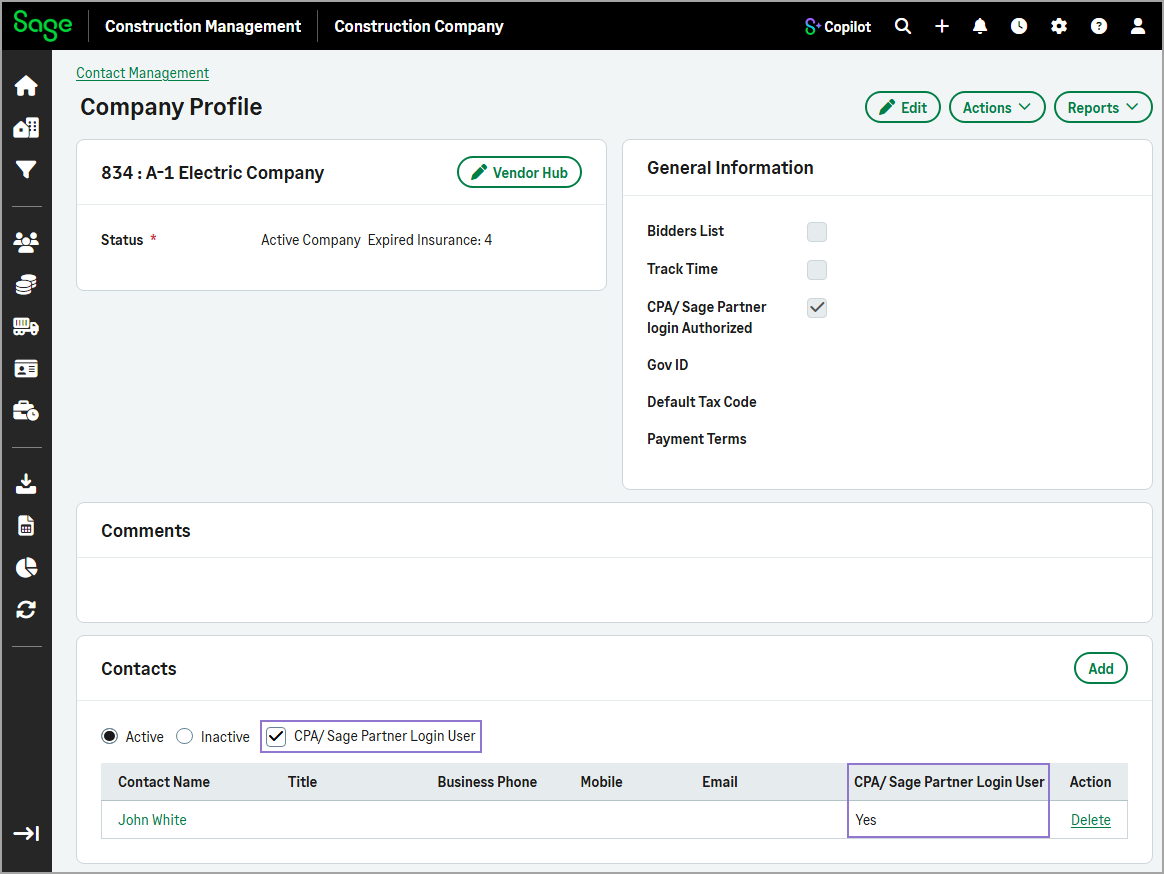
Go to Contact Management and open the company profile page for a company that has the CPA/ Sage Partner option selected.
-
In the Contacts section, select the CPA/Sage Partner Login User checkbox to view only company contacts that are external users.
Log in as an externally authenticated user
-
Log in to Sage Construction Management as usual using your externally authorized credentials.