Company Profile page enhancements
Related information
 Related topics
The Company Profile page and Create Company form have been updated to improve navigation, simplify data entry, and provide greater visibility into accounting integration status.
Details
Company Profile page
-
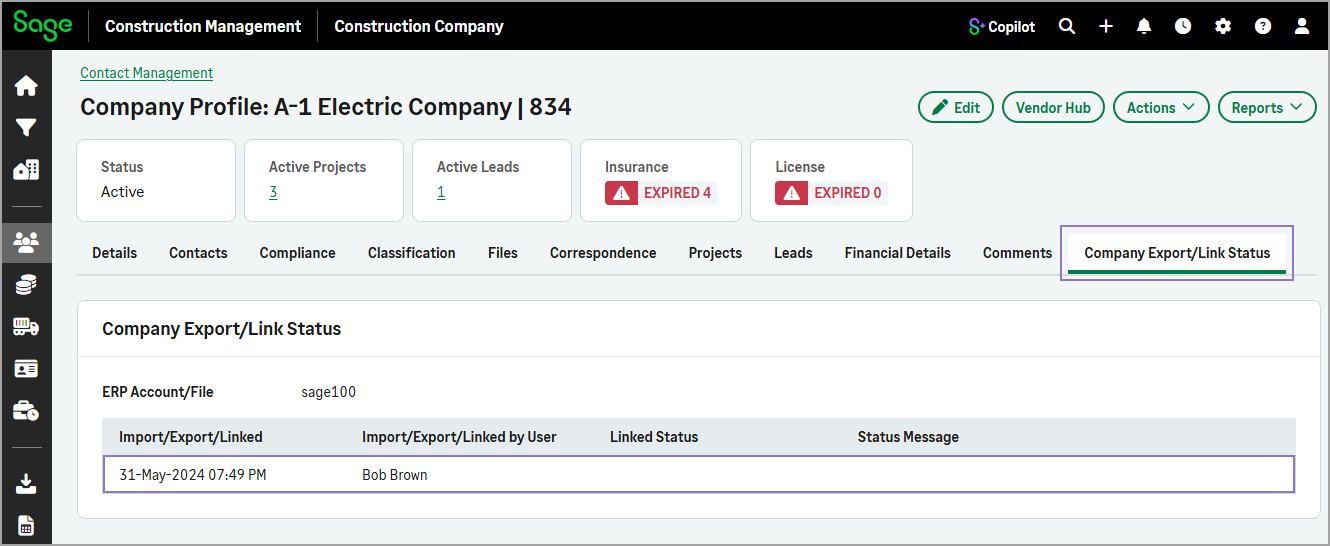
A new Company Export/Link Status tab has been added. This tab displays whether a company has been imported, exported, or linked to your accounting system through the AccountingLink.
-
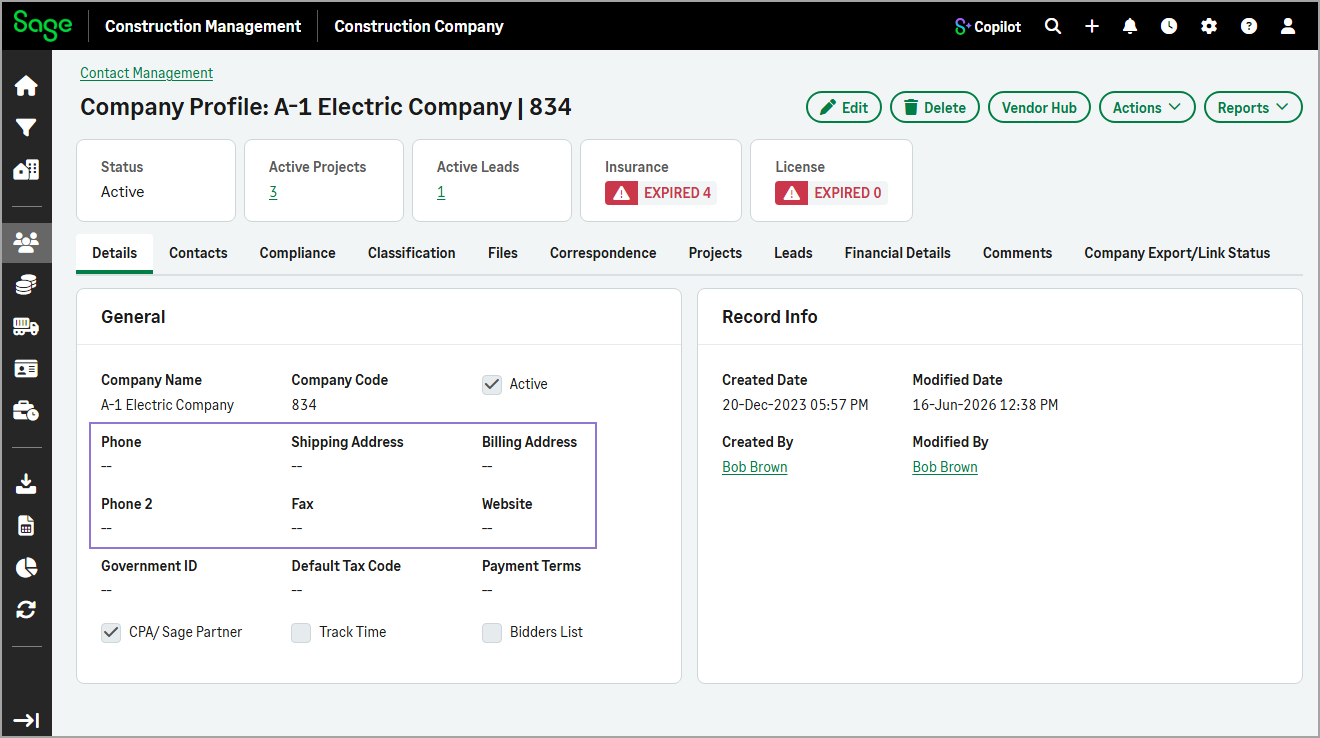
On the Details tab, the Company Contact Info and Company Address sections have been removed. Phone, shipping address, and billing address information has been moved to the General section.
-
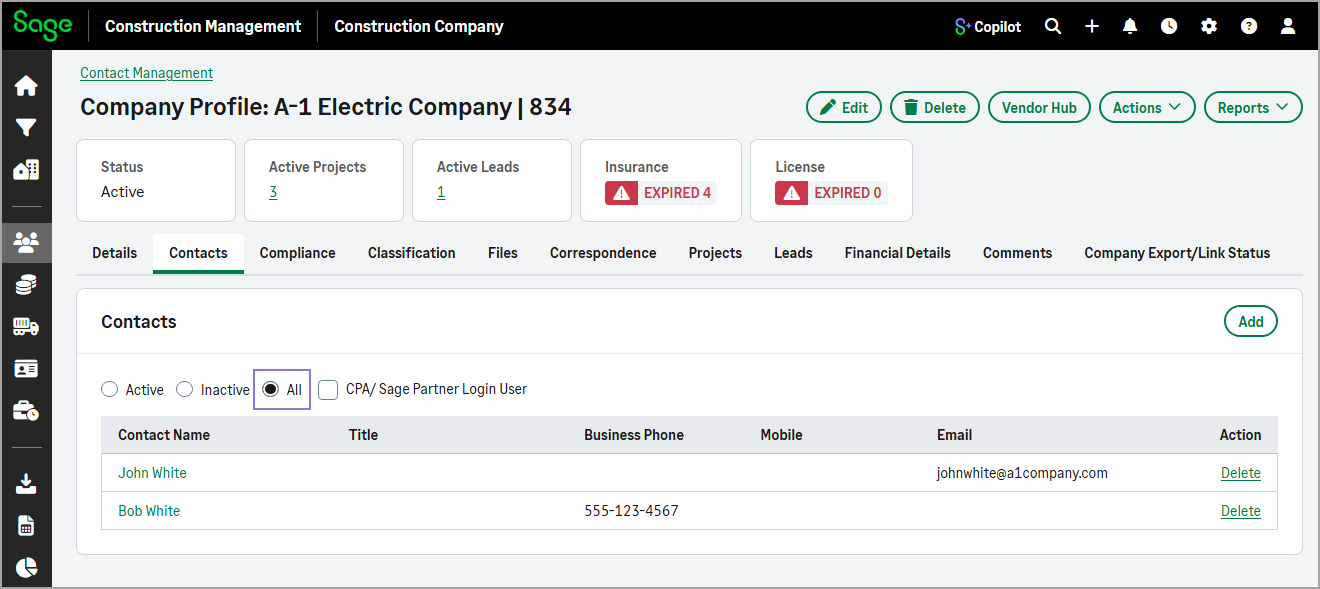
On the Contacts tab, an All filter has been added, allowing you to view active and inactive contacts together. Previously, you could view only active or inactive contacts.
-
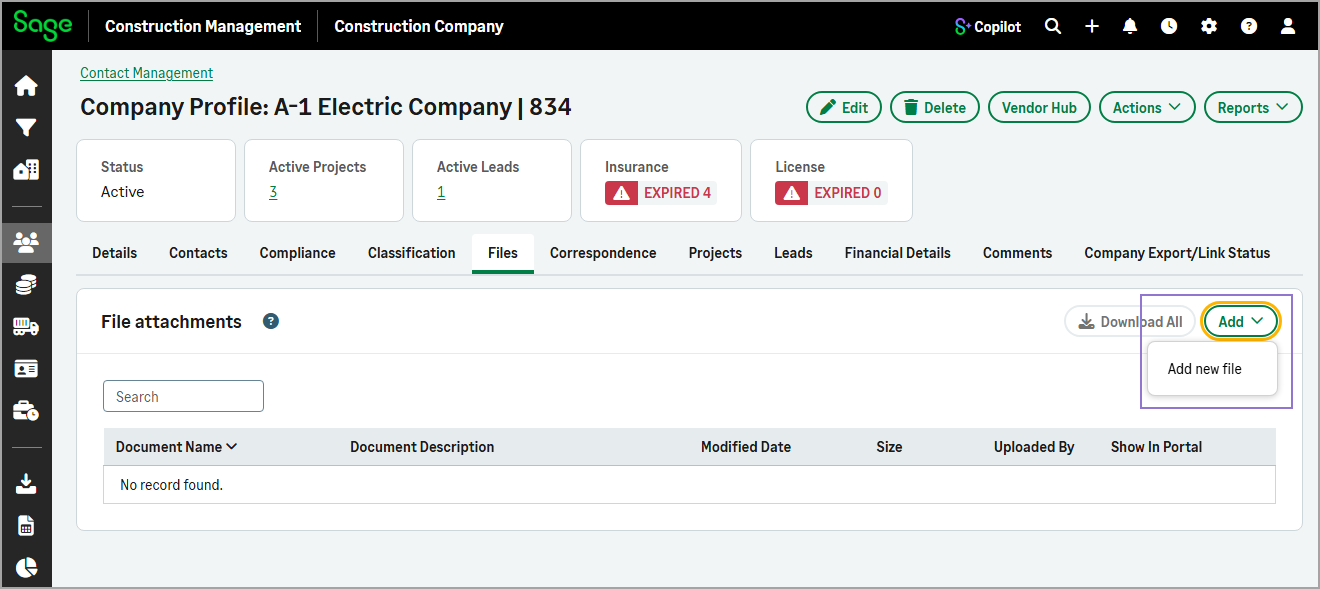
On the Files tab, the Drawings & Specs, Photos, and All Other Records options have been removed from the Add menu because they apply only to leads and projects.
Add Company form
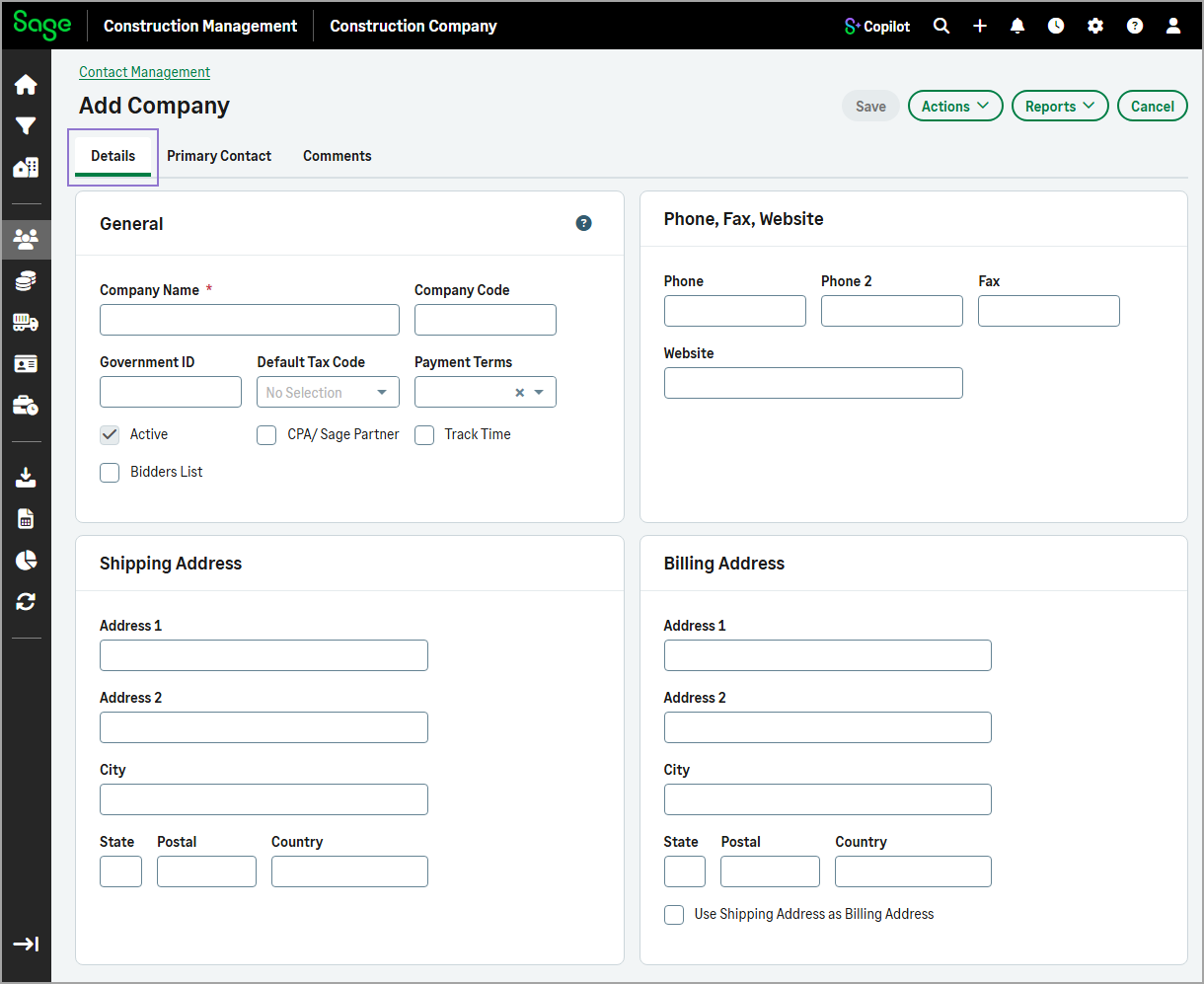
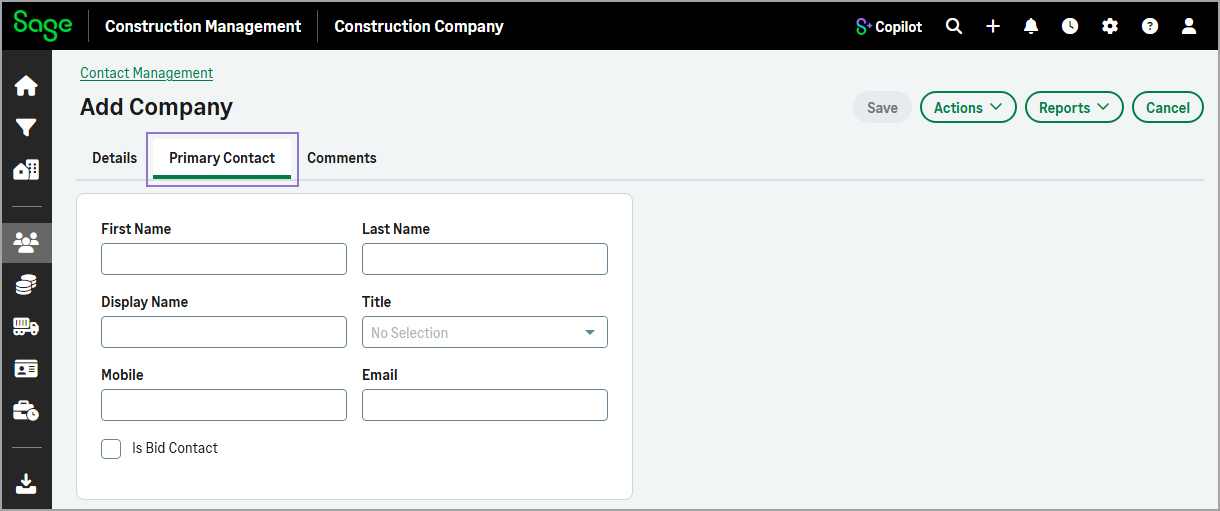
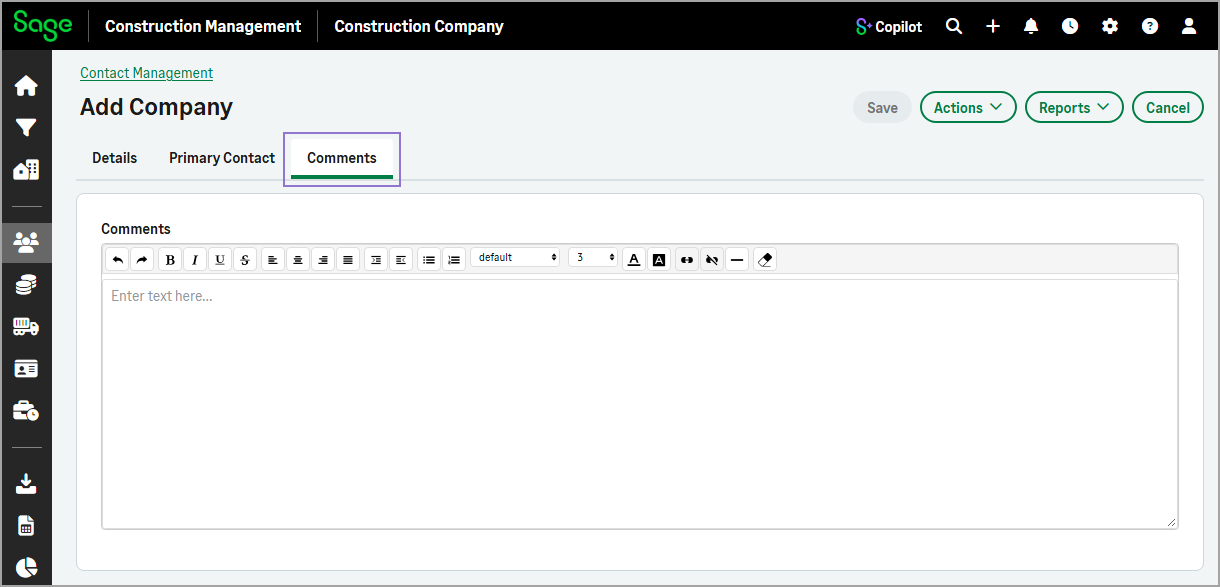
The Add Company form has also been updated with a tabbed layout, making it easier to enter and manage company and contact information. The form includes the following tabs:
-
Details
Add general company information, including phone and fax numbers, website, shipping address, and billing address.
-
Primary Contact
Add the primary contact’s information, including first name, last name, title, mobile number, and email address.
-
Comments
Add any additional information about the company.
Key benefits
-
Quick integration status verification: Easily determine whether a company has been imported, exported, or linked to your accounting system.
-
Improved visibility: View company integration activity directly from the Company Profile page.
-
Simplified data entry: Create company records more efficiently with a streamlined form layout and reorganized fields.
How it works
- Go to Contact Management.
- To add a new company:
- On the Companies tab, select Actions > Add Manually.
On the Add Company page, do the following:
On the Details tab, enter the Company Name, and complete the remaining fields as needed.
Optionally, select the Primary Contact tab, and enter the primary contact's information.
Optionally, select the Comments tab, and enter any additional information about the company.
Select Save.
-
To view a company's export status:
-
On the Companies tab, select the company name to open the Company Profile page.
-
Select the Company Export/Link Status tab.
-
Review the Company Export/Link Status section to see whether the company has been imported, exported, or linked through the AccountingLink.
The table includes the action date, user, link status, and any status messages.
-