Save and reuse custom signatures across documents
Related information
 Related topics
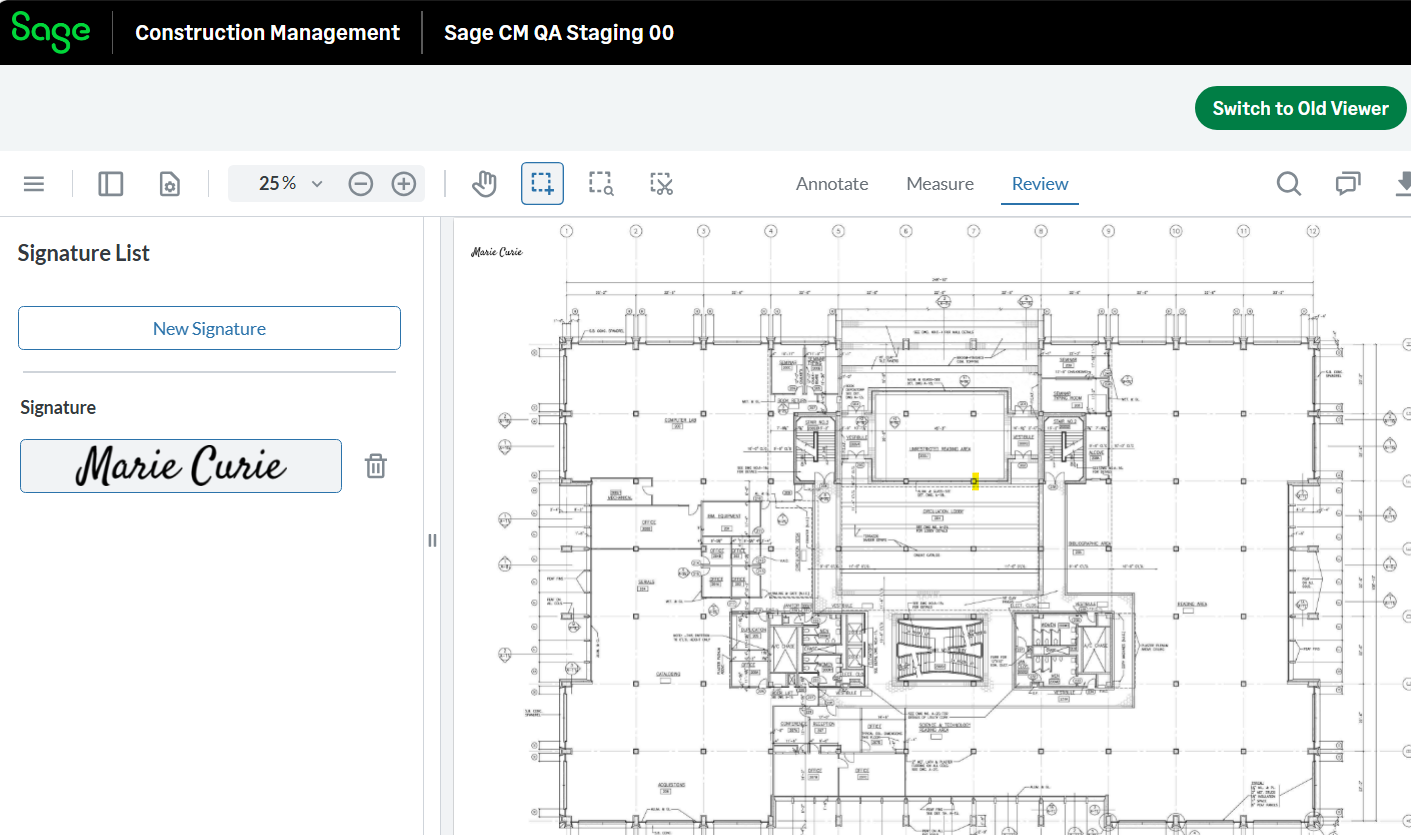
Custom signatures created in the Document Viewer are now saved for each user and remain available across sessions and documents.
Details
Users can now create a custom signature once and reuse it whenever they open a document in the Document Viewer.
The following improvements have been incorporated in signature management:
-
Custom signatures are saved for the user and persist after closing and reopening a document. They can be deleted as needed.
-
Saved signatures are available and can be reused across different drawings and documents instead of being limited to the file where they were created.
-
Users can quickly access previously created signatures without needing to recreate them in each session.
How it works
-
In the Document Viewer, select the Review tab.
-
Select New Signature.
-
Select Draw to draw a signature and select a color.
Alternatively, select the Type tab and enter a signature, or select the Upload tab and select a signature file to upload. -
Select Create.
The signature is created and saved to your user profile. It remains available the next time you open the same document or any other document in the Document Viewer, allowing you to reuse it without recreating it.