Upload and process drawings using the AI Drawing Upload Wizard
Related information
 Related topics
The AI Drawing Upload Wizard streamlines the process of uploading, analyzing, and importing drawings. The wizard guides you through selecting a drawing set, uploading files, reviewing uploaded documents, processing drawings with AI, and validating extracted drawing information before importing drawings into Sage Construction Management
Details
The AI Drawing Upload Wizard provides a guided workflow for managing drawing uploads and preparing drawings for import, enabling you to:
- Create a new drawing set or select an existing drawing set during the upload process.
- Upload one or more drawing files using drag-and-drop or file selection.
- Review uploaded files, including file names, file sizes, and page counts, before processing.
- Use AI to extract drawing number, title, revision, release date, and other title block information.
- Use OCR extraction tools when additional text extraction is required.
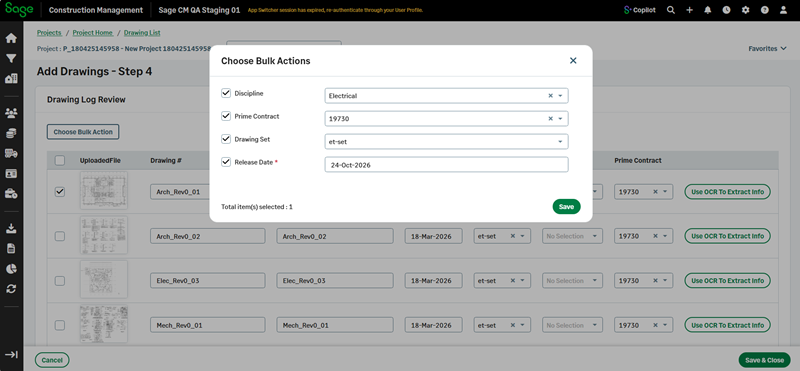
- Apply bulk actions to update multiple drawings at the same time.
- Validate drawing information before completing the import process.
How it works
The AI Drawing Upload Wizard guides you through four steps.
- Go to Leads or Projects and select a lead or project from the list.
- Select Drawings > Actions > Add Manually.
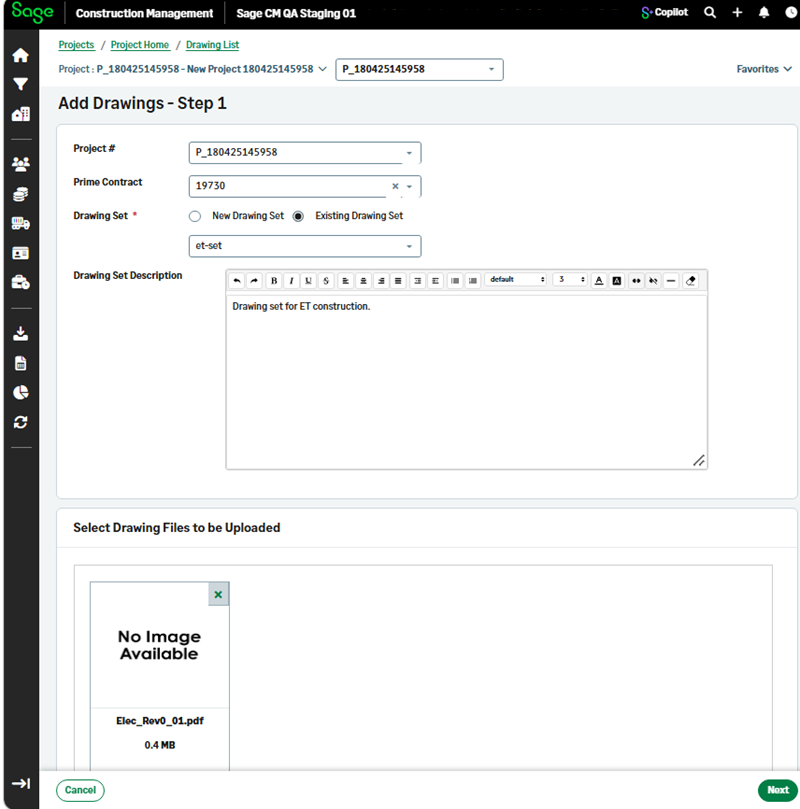
- Step 1: Select a drawing set and upload files.
- Select a Project # and, if applicable, a Prime Contract.
- Select Existing Drawing Set, and select a drawing set from the dropdown.
- Alternatively, select New Drawing Set, and enter the drawing set date and name.
- Upload one or more drawing files using drag-and-drop or file selection.
- Select Next.
-
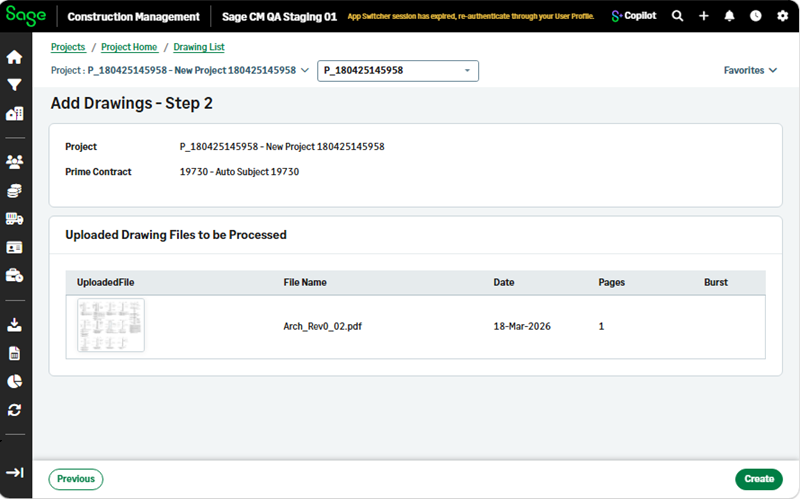
Step 2: Review uploaded files.
- Review the uploaded files before processing begins.
- Verify file names, dates, and page counts.
- Select Create.
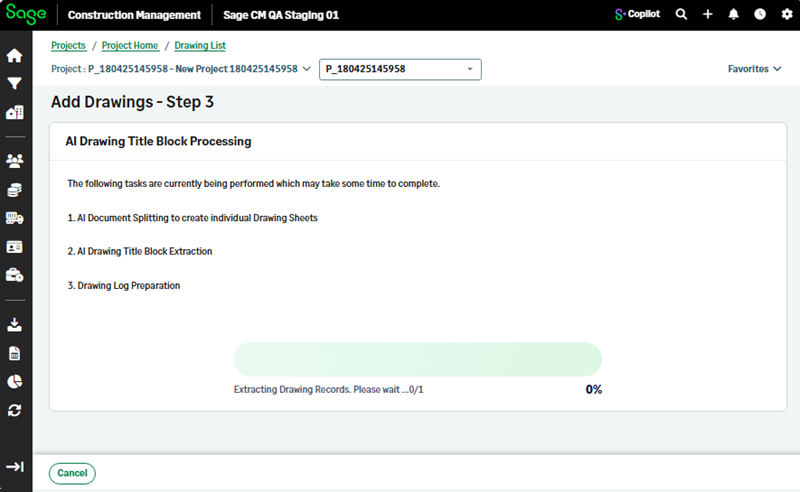
- Step 3: AI processing.
- The system automatically processes the uploaded files.
- AI document splitting creates individual drawing sheets.
- Progress indicators display the status of the processing task.
-
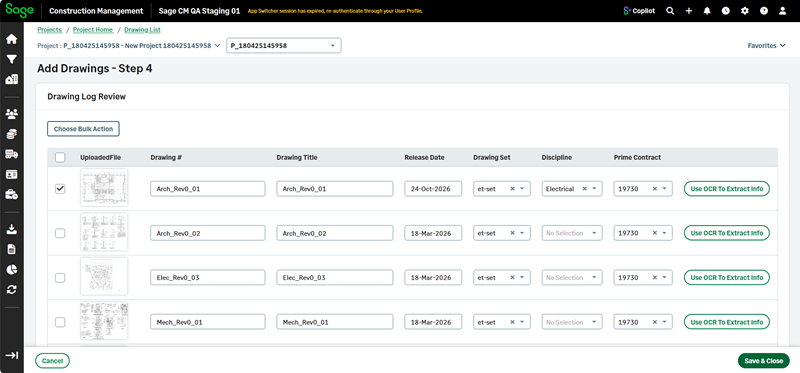
Step 4: Review and import drawings.
- Review the extracted drawing information before importing the drawings, such as the Drawing #, Title, Release Date, Drawing Set, and Prime Contract.
- Select a Discipline from the dropdown.
- Select Use OCR to Extract Info, as needed.
- Select the UploadedFile checkbox when ready.
- For multiple drawings, select Choose Bulk Action and select the needed details.
- Select Save & Close.