Lead page redesigned
Related information
 Related topics
The Lead page has been redesigned to provide a more streamlined and intuitive experience. The new layout includes a lead summary header and a tabbed interface that organizes lead information, contacts, schedules, reports, and documents into a single workspace.
Details
With this update, the Lead page features the following summary cards at the top of the page that provide quick access to key information:
- Status
-
Current Stage
-
Bid Date and Time
-
Estimated Lead Start Date
-
Estimated Lead Finish Date
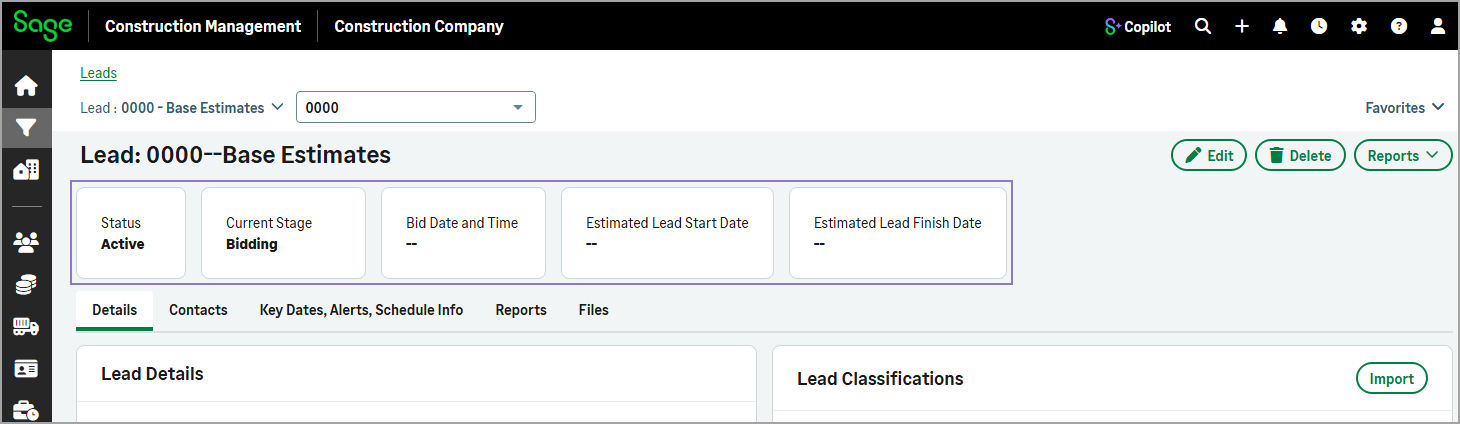
Below the summary cards, related information is organized into dedicated tabs, making it easier to navigate and find specific details.
The redesigned Lead page includes the following tabs:
-
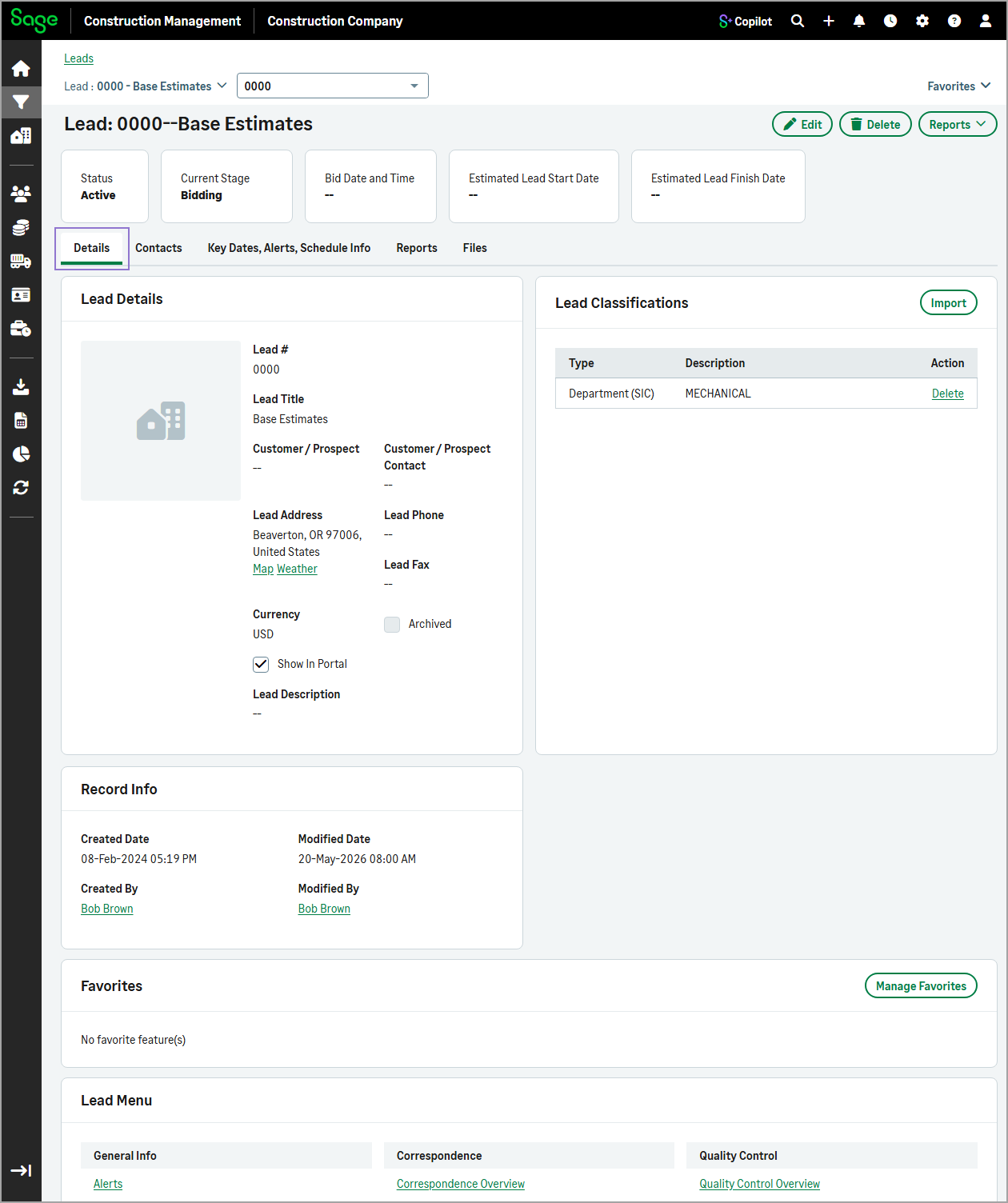
Details
Displays the lead's general information, classifications, record information, favorite features, and lead menu.
-
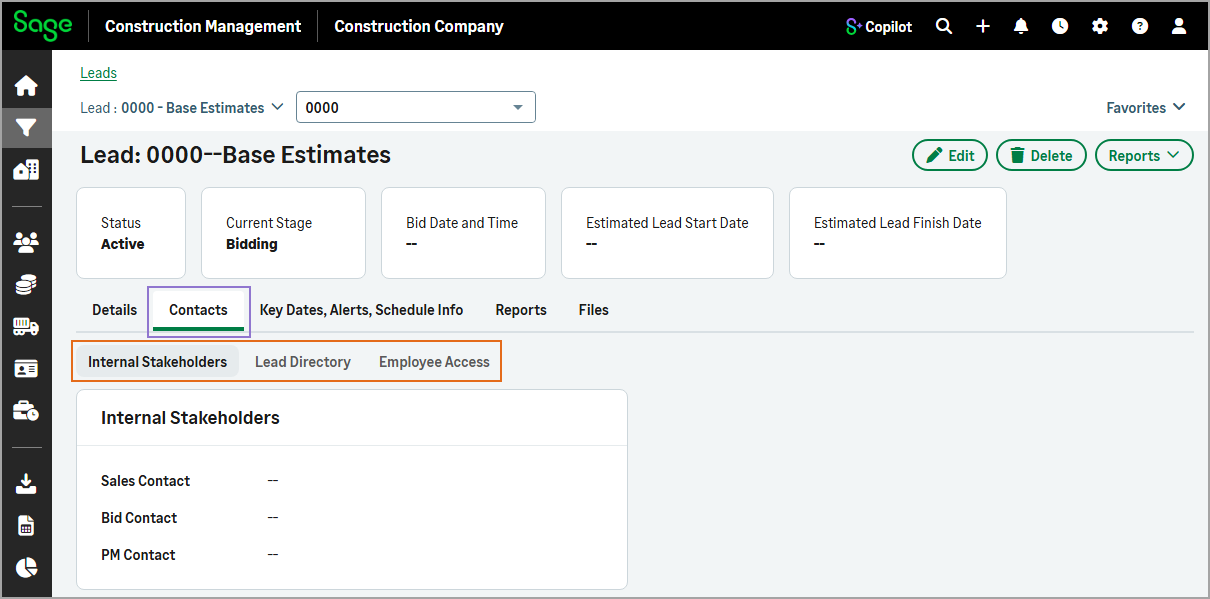
Contacts
Contains sub-tabs for Internal Stakeholders, Lead Directory, and Employee Access. Select a sub-tab to view its related contacts.
-
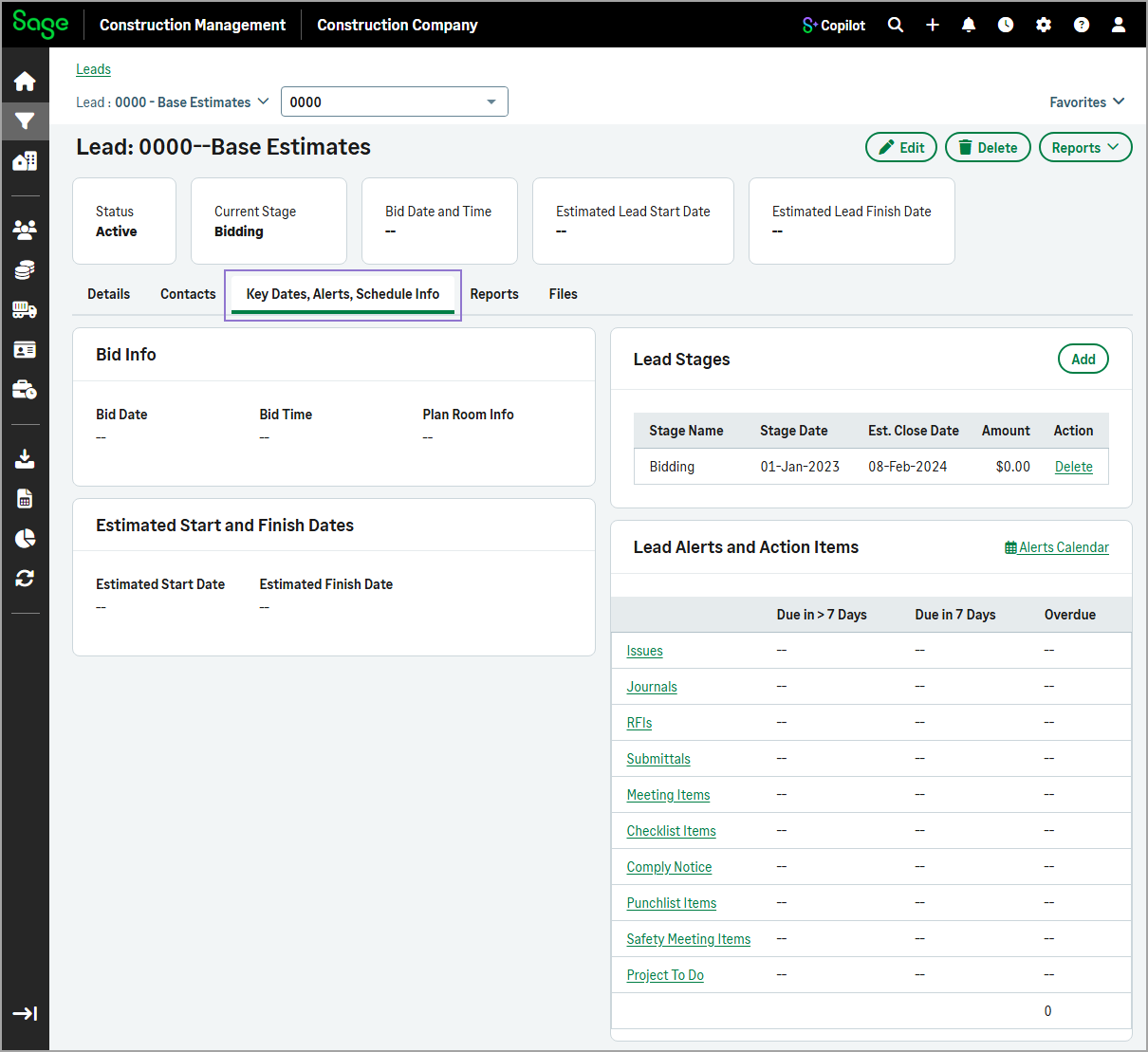
Key Dates, Alerts, Schedule Info
Displays the lead's bid information, lead stages, alerts and action items, and start and finish dates.
-
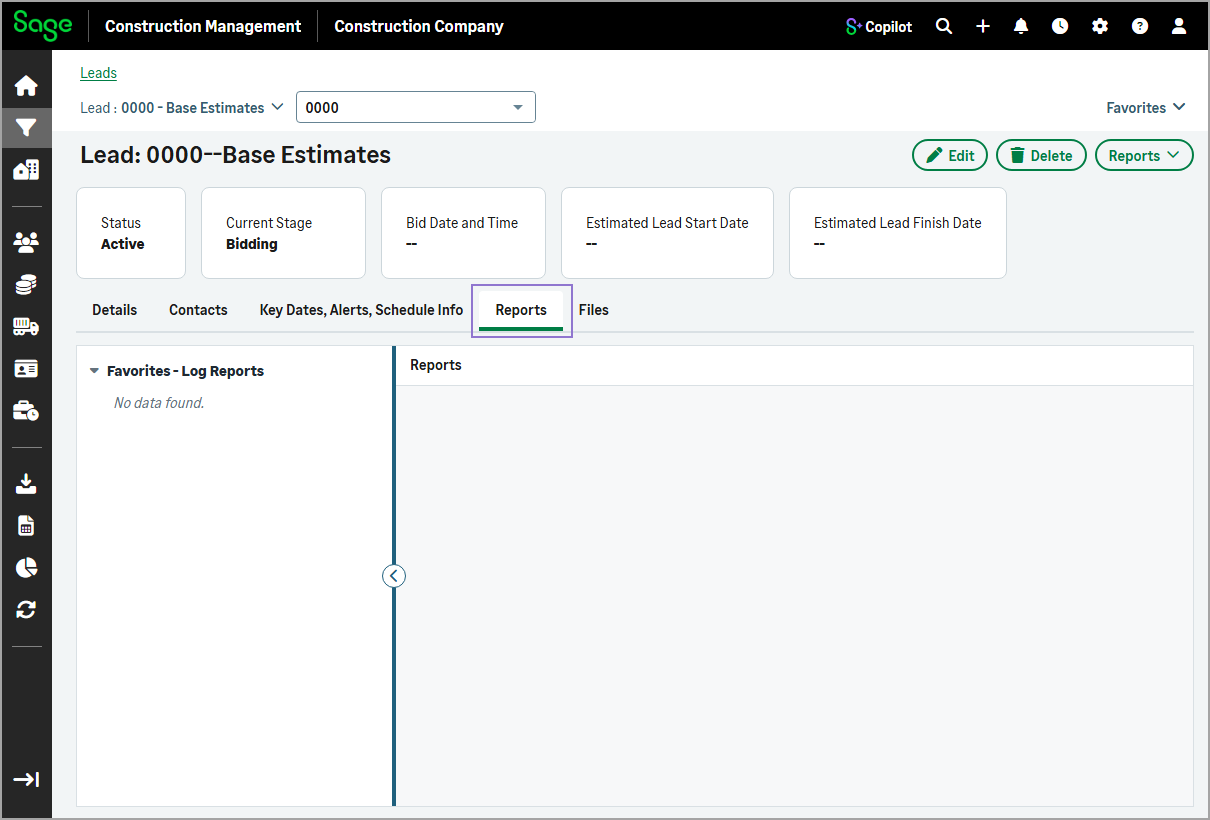
Reports
Displays a list with favorite log reports. Selecting any report from the left side list, opens it in the main viewing area.
-
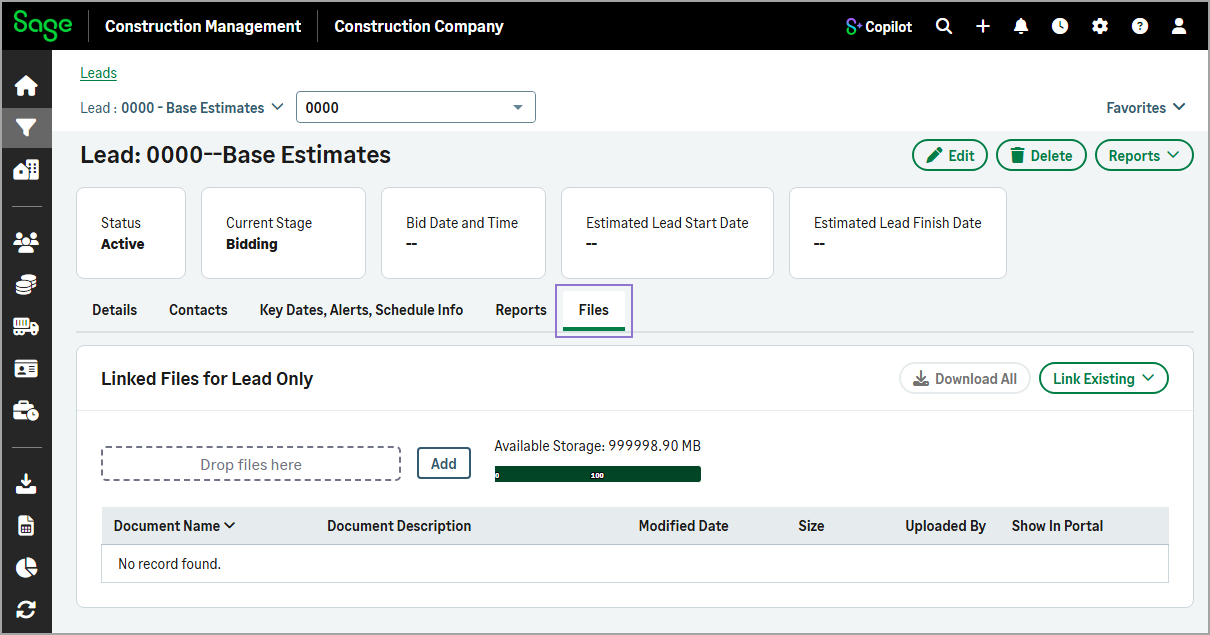
Files
Displays all files linked to the lead record.
The Delete action is also available at the top of the Lead page, making it easy to remove the lead record directly from the page.
Key benefits
-
At-a-glance insights: Quickly understand project health with summary cards that highlight key information such as lead status, current stage, and schedule details.
-
Faster access to information: Navigate directly to the information that you need, using clearly organized tabs that reduce scrolling and improve efficiency.
-
Centralized team information: View lead stakeholders, contact details, and the complete lead directory from one location without leaving the lead page.
-
Integrated reporting: Access favorite log reports directly within the lead page, making it easier to monitor lead details.
How it works
-
Go to Leads and select a lead from the list.
-
Use the tabs to access lead information, including details, contacts, schedules, reports, and documents.
- To update information on the Details, Contacts, or Key Dates, Alerts, Schedule Info tabs, select Edit.
- To add lead classifications, select the Details tab, and then select Import in the Lead Classifications section.
- To view a log report, select the Reports tab, and then select a favorite log report from the list.
- To link files to the lead, select the Files tab, and then select Add.
- To delete the lead, select Delete at the top of the page.