Restrict prime contract item changes after invoicing
Related information
 Related topics
Cost code updates are now restricted for prime contract items after a prime invoice has been created, helping ensure that contract details remain aligned with billed amounts.
Details
The behavior when editing prime contract items depends on whether the Do not allow prime contracts or change orders to be modified after prime invoices have been created option is selected.
When the option is not selected:
-
You can edit general item details for single items, but the cost code field can no longer be updated for items referenced in a prime invoice.
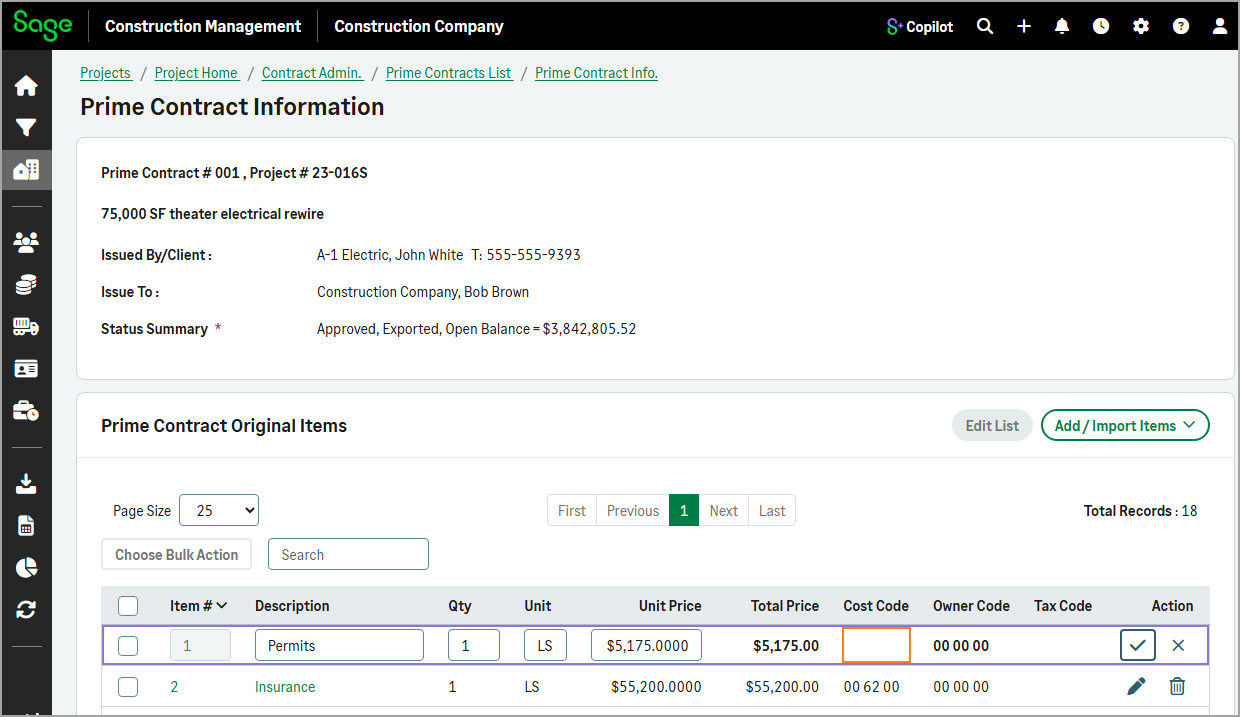
-
The Job Cost Code bulk action is not available and a message informs that the action cannot be performed because one or more targeted items are referenced by a prime invoice.
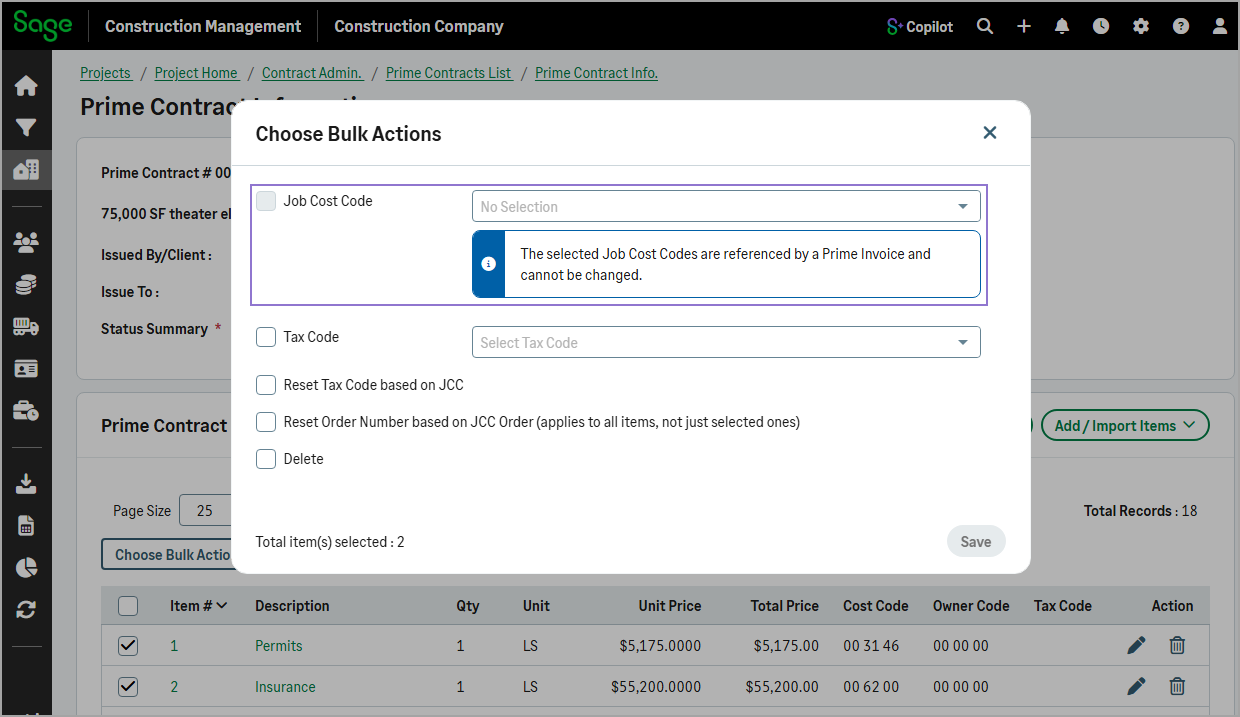
When the option is selected:
-
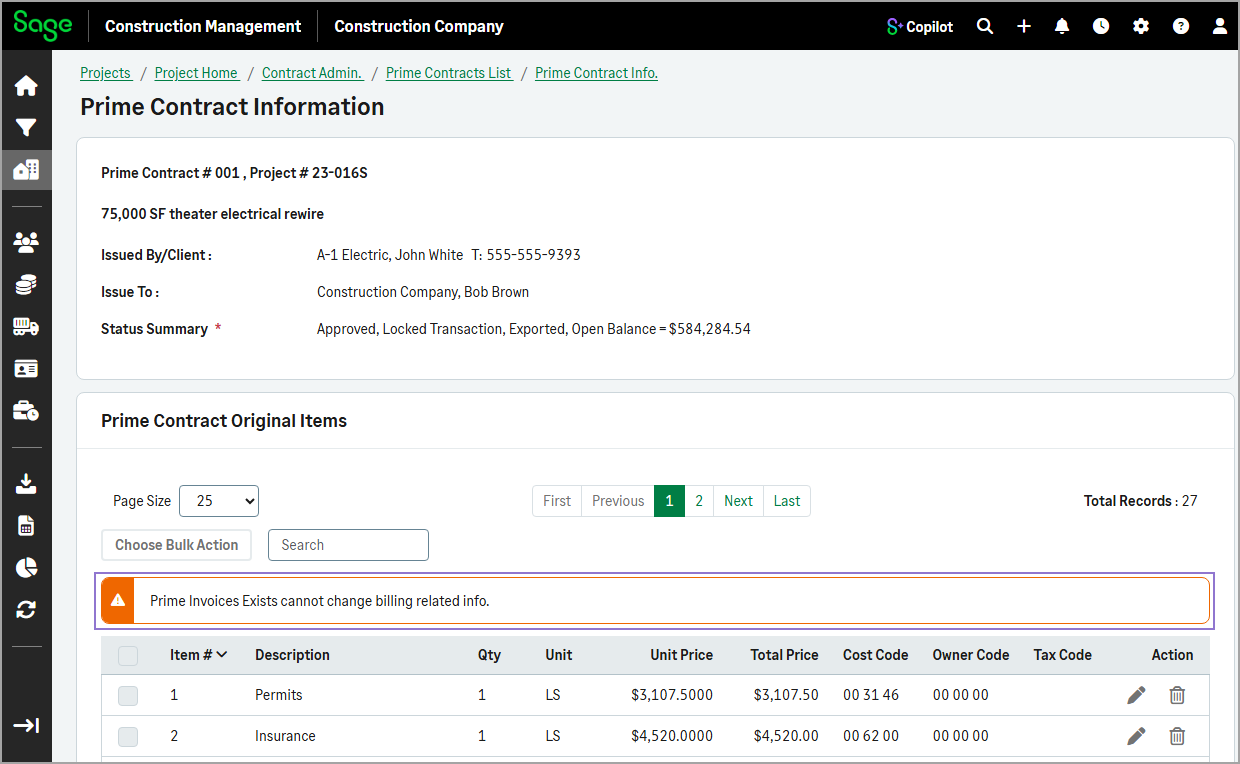
Prime contract items cannot be modified after a prime invoice is created.
-
A clear warning message is now displayed on the prime contract items page, informing users that updates are not allowed because prime invoices already exist.
Key benefits
-
Improved financial accuracy: Helps prevent cost code changes that could create inconsistencies between prime contract items and historical invoice records.
-
Clearer user guidance: Provides contextual messages that explain why specific fields or bulk actions are unavailable.
How it works
- To allow editing prime contract items after a prime invoice has been created:
- Go to Settings (
 ) > Feature Settings > Contract Admin.
 - Clear the Do not allow prime contracts or change orders to be modified after prime invoices have been created checkbox.
- Select Save.
- Go to Settings (
-
To edit items for a prime contract after prime invoices have been created:
- Go to Projects and select the appropriate project from the list.
- On the Project page, select Prime Contracts in the Client Contract Admin category of the Project Menu section.
- Select the prime contract number from the list.
- Ensure that the Locked checkbox in the Approval and Lock Status section is not selected.
- Depending on the type of contract, select one of the following links in the Original Prime Contract Budgets section:
- If the contract type is Fixed Lump Sum, select Contract Amount (aka Schedule of Values).
- If the contract type is Cost Plus With GMP, select Contract / GMP Amount.
- If the contract type is Unit Price, select Unit Price Items.
-
Select edit next to an item or Edit List.
The cost code field is not available.
-
Optionally, select one or more items, and then select Choose Bulk Action.
The Job Cost Code field is not available